ENTRIES
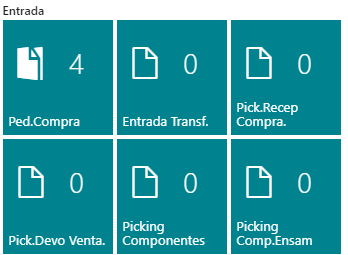
Purchase Orders
Upon entry, pending reception purchase orders are displayed:
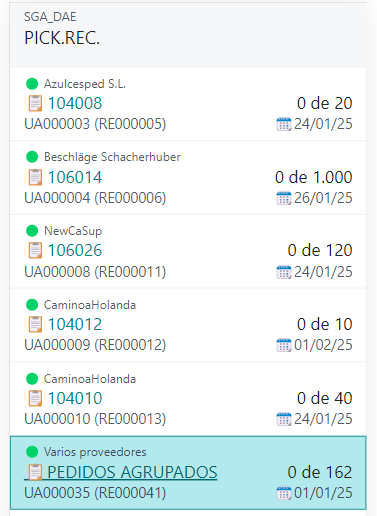
The green icon indicates they are within the schedule, while red signifies a delay concerning the expected reception date.
If there are several suppliers, they are shown as "GROUPED ORDERS" to identify the case:
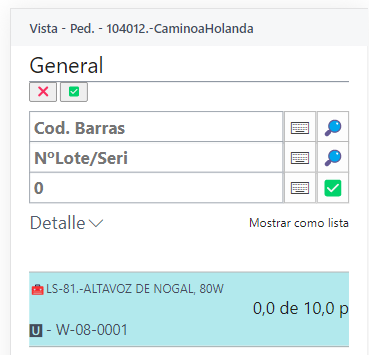
When scanning a product barcode, it informs whether it requires Lot/Series  or does not have tracking
  .
.
The screens can be configured to read Product and Lot in 2 scans or use a barcode to obtain both. This setting is in Warehouses:

iDynamics Advanced Warehouse automatically creates the Warehouse Receipt and the necessary receipt picking for entry through this action.
When registering, it updates the cart quantity and displays what is pending to be read. Items already scanned are marked with a green icon.
After registration, it's essential to verify that BC confirms the completion:
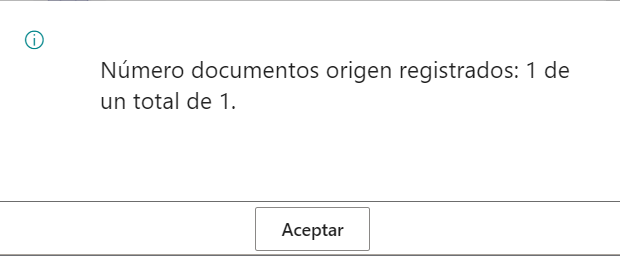
If you see "0 out of 1," it means there was an error and it didn't enter stock.
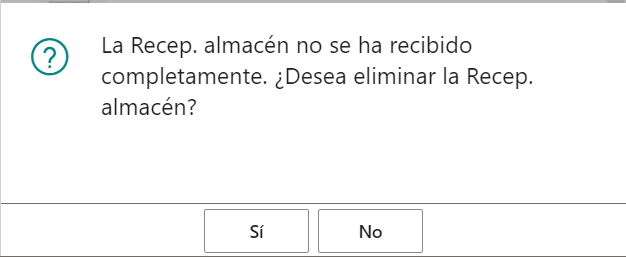
In the case of a partial entry, respond "Yes" to the following question:
Transfer Receipts
Similar to purchase order entries, these entries are received from transfer orders but create the reception picking beforehand.
Purchase Receipt Picking
If automatic creation is disabled, you can create individual or grouped reception pickings manually.
The "RECEPCION" location must have the "direct transit" checkbox checked to allow the creation of the Storage Picking from that location.
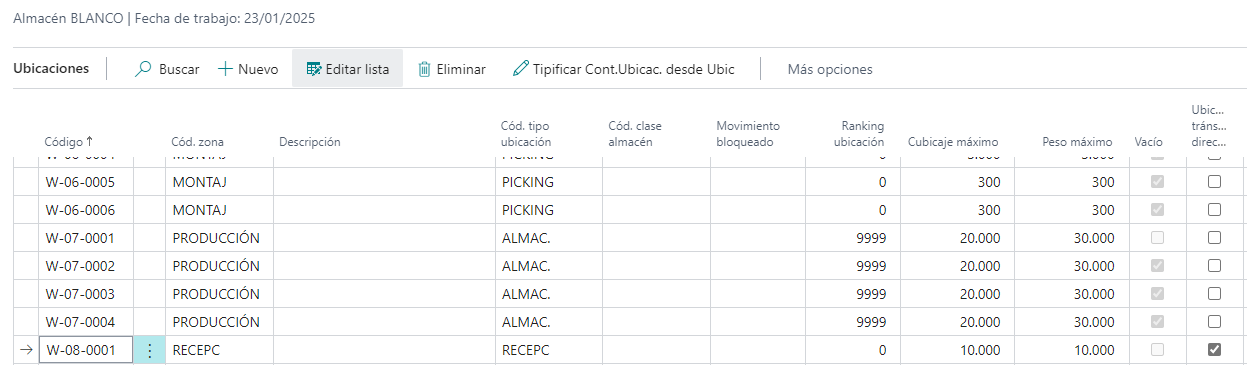
The first of three direct access locations for production outputs:
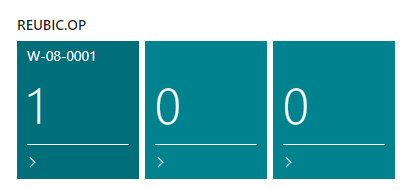
These locations accumulate manufacturing outputs. When appropriate (per order or at a specific volume), the "Storage Picking" is created from the "Create Movement Location":
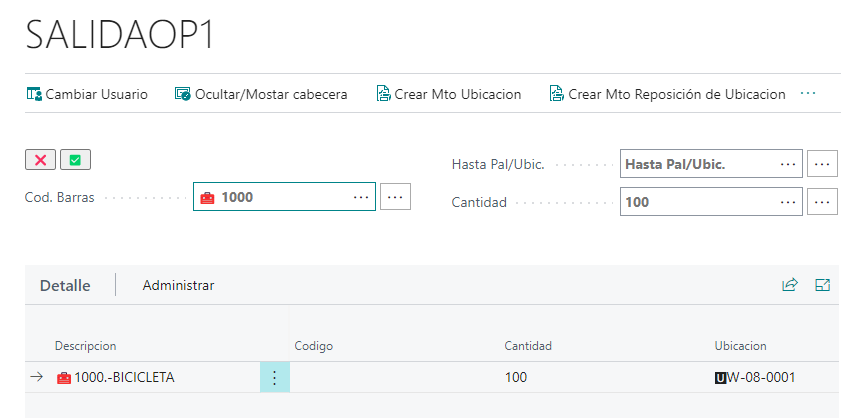
It generates a "Warehouse Movement" and selects destination locations based on the storage template:
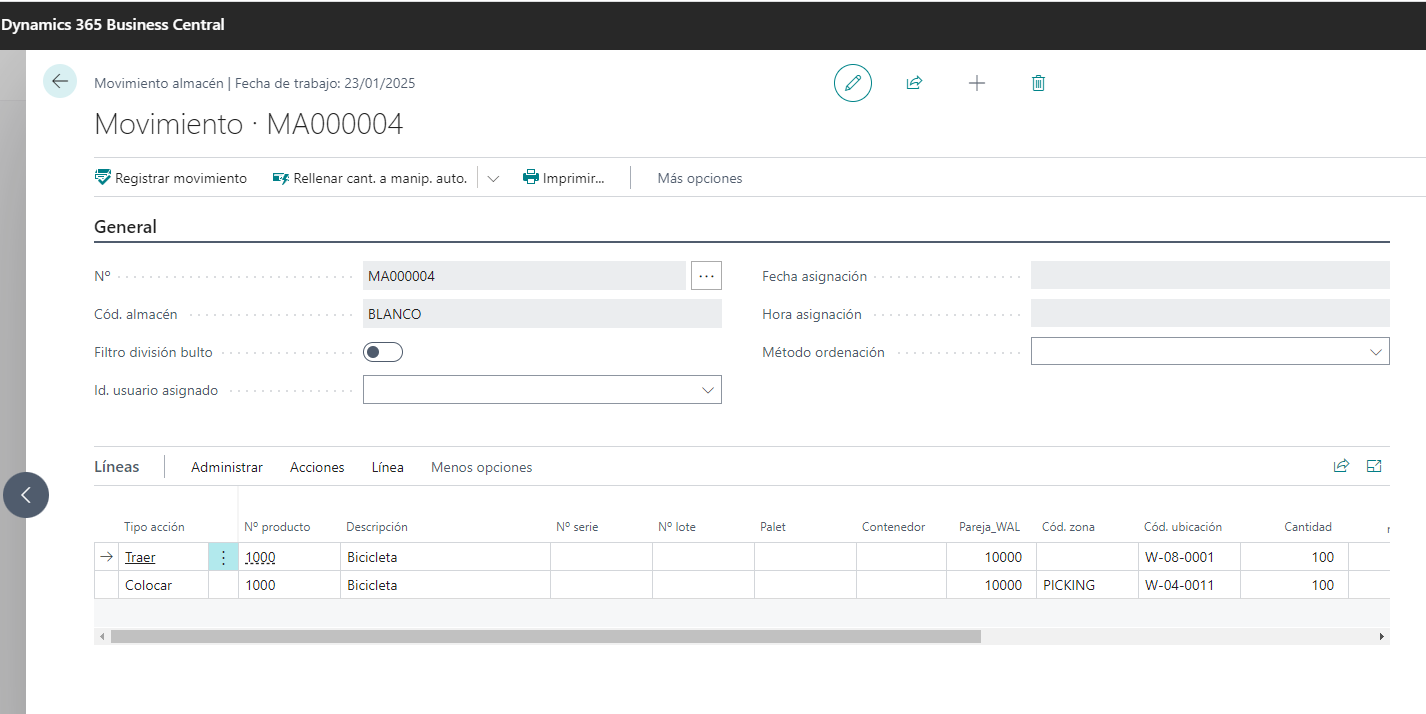
If the checkbox is marked in the Warehouse:

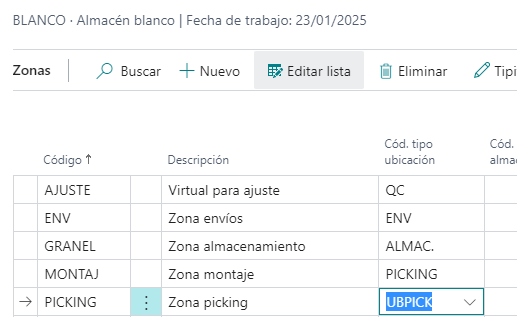
The template considers the type. In this case, UBPICK is suitable:
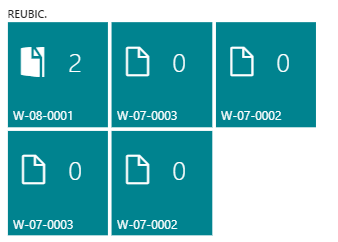
Note: There's a "REUBIC" section with default locations: Reception, OP components, OP output, assembly components, assembly output (these locations are configured in the warehouse), and the behavior is similar to that described above:
Sales Return Picking
Requires scanning the input to proceed with the registration.
OP Components Picking
These pickings supply the needs of an OP in the advanced manufacturing module.
Creation of the iDynamics Advanced Warehouse's own production picking. Pickings can be created in two ways:
- Manufacturing order by order:
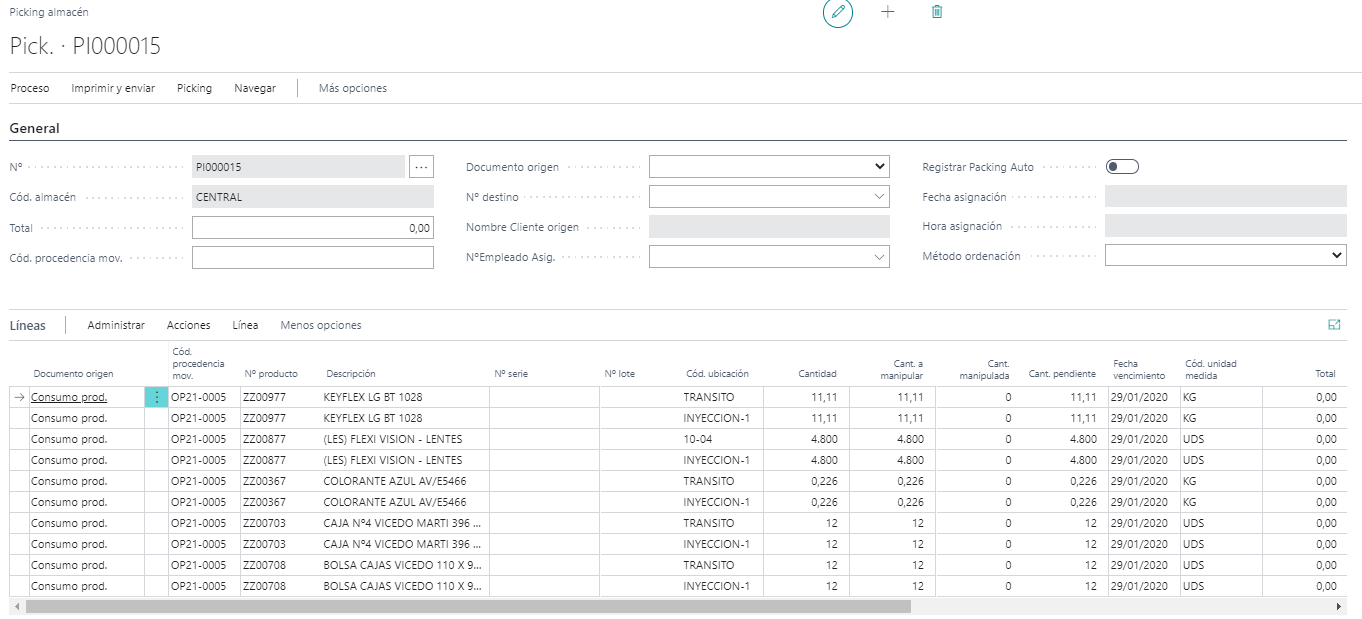
- Component load from OPs:
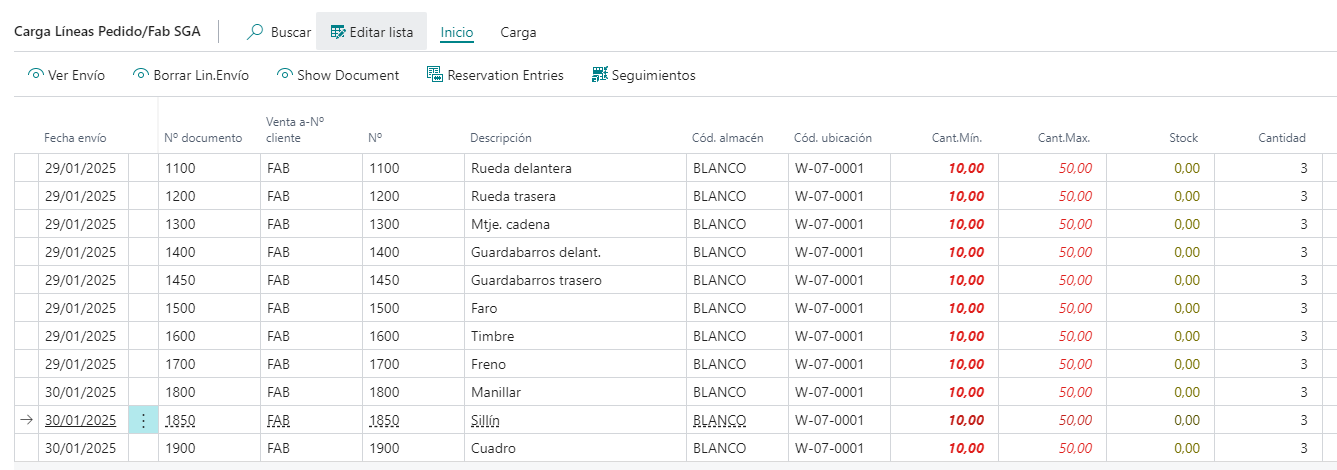
Creates the Production Load Picking:
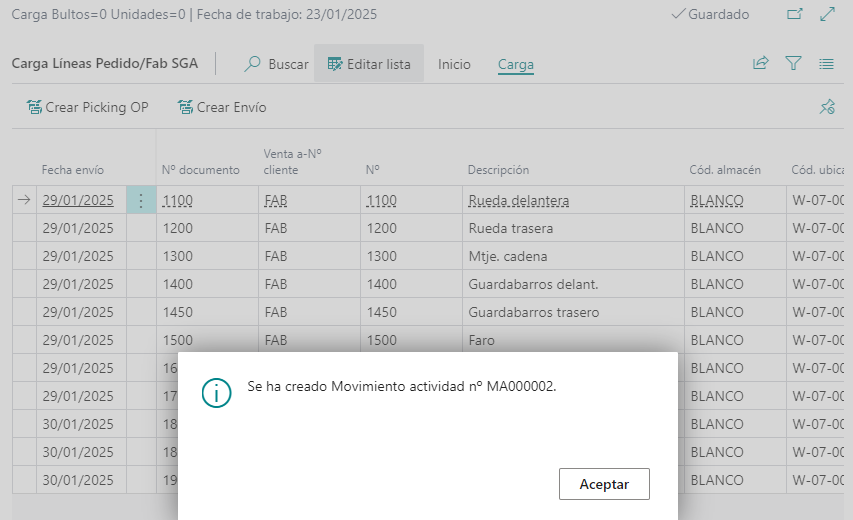
The created document:
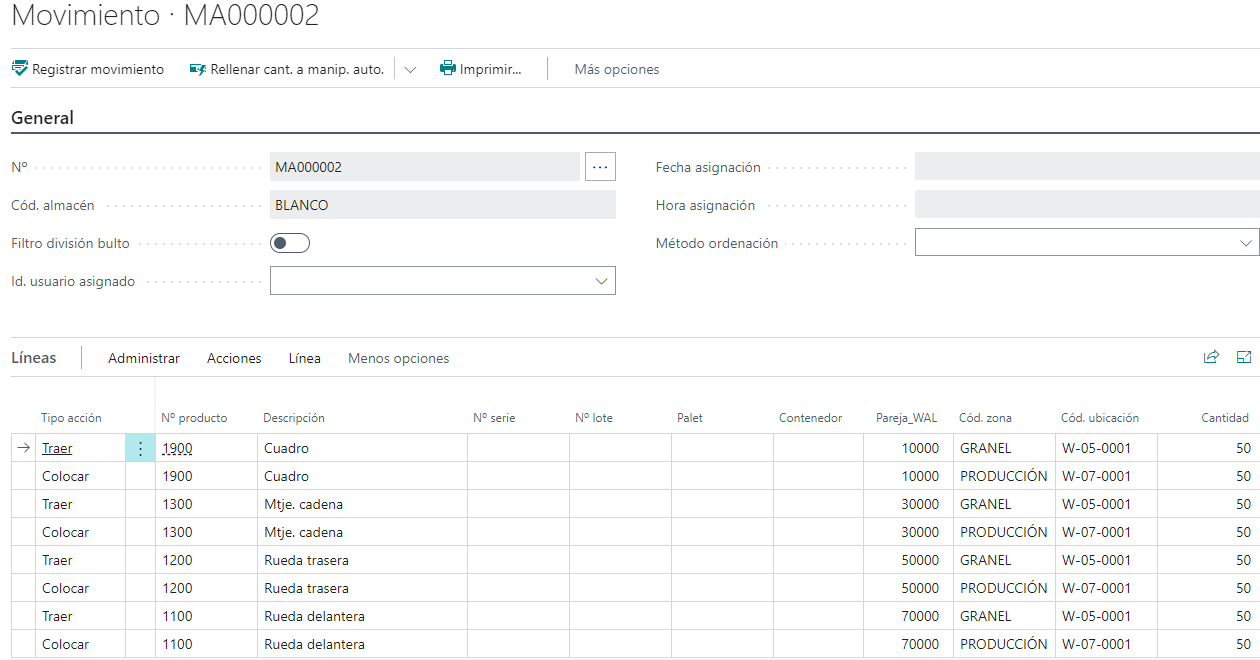
It can be accessed from the corresponding activity:
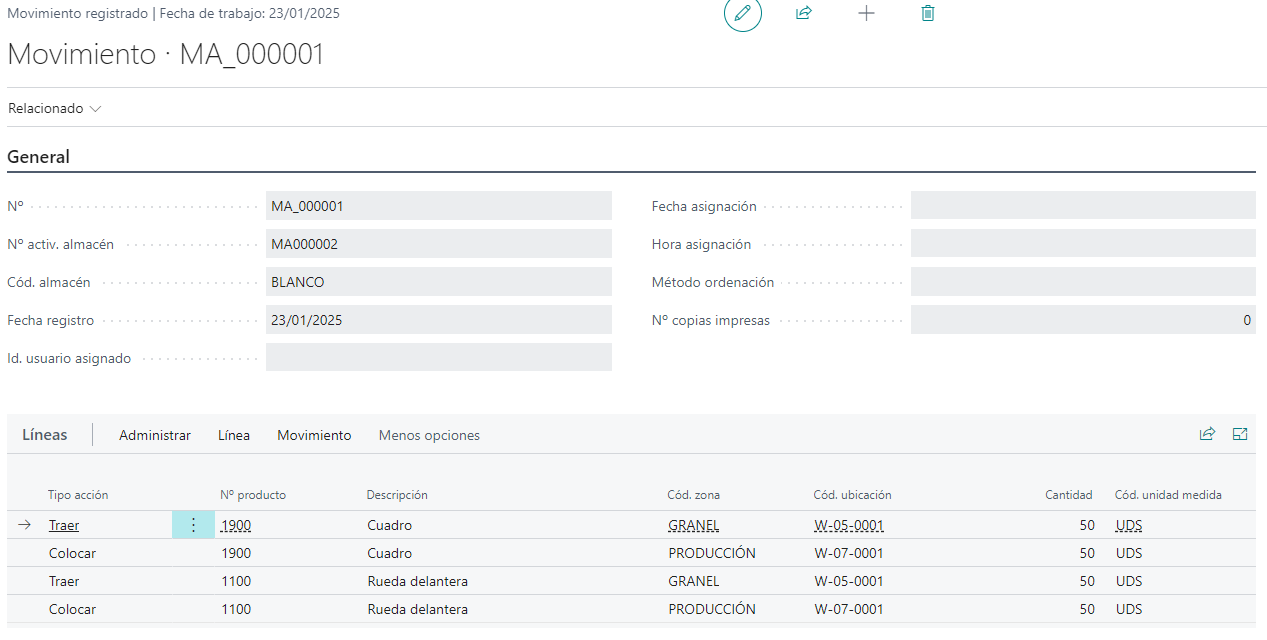
For example, reading and registering a couple of products and checking the generated warehouse movement:

The history is available in Registered Docs:
Assembly Components Picking
Similar to manufacturing, these pickings supply the needs of a light manufacturing or assembly order.