Automatic Synchronization
Once the initial synchronization of all existing commissions and sales in Business Central has been completed, automatic synchronization must be activated so that it runs unattended.
Additionally, email notifications for synchronization errors can be activated for greater convenience, so the user does not need to do anything else from Business Central. However, they can check the synchronization log if they wish, to make sure it is up to date and no errors have occurred.
Activate automatic synchronization
Once verified that the initial synchronization of all commissions and sales has completed successfully and can be viewed from the Dynamics 365 Sales environment with the required security (each salesperson sees only their data and there are users who can see everyone's), you need to activate automatic synchronization so that new commissions and sales registered from this point on, or modifications to existing ones, are synchronized with the Dynamics 365 Sales environment unattended.
There are several ways to do this.
- When closing the initial synchronization page for commissions and sales once it has finished — that is, all tables show a "Finished" status — the job queues for automatic synchronization of commissions and sales are activated automatically.
- They can be activated manually through the action available for this on the Dynamics 365 Sales Integration Setup page page.
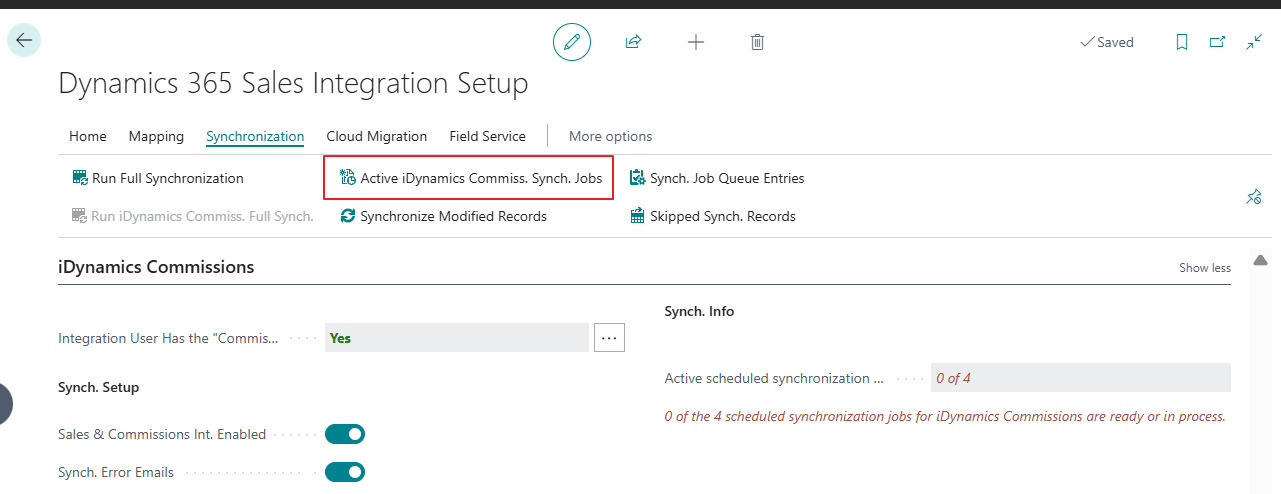
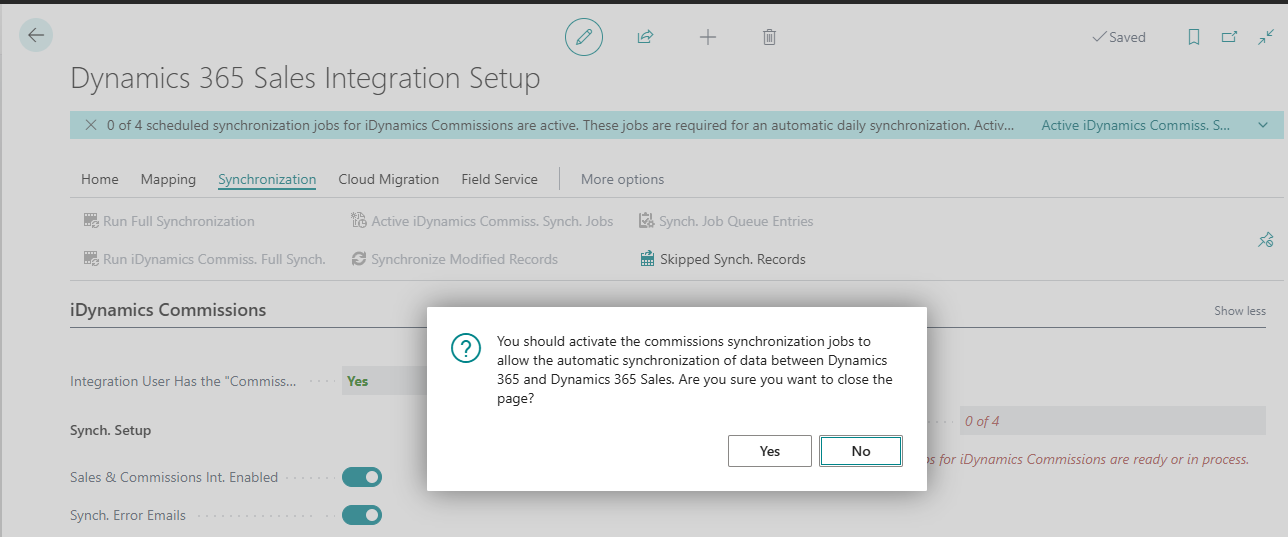
- If neither of the two previous options is used, when closing the Dynamics 365 Sales Integration Setup page page, a confirmation dialog will be displayed if the initial synchronization of commissions and sales has finished but the job queues for automatic synchronization have not been activated.
Activate error email notifications
Once automatic synchronization of commissions and sales is activated, it will run unattended in the same way it works for standard entities such as customers, currencies, items, etc. — that is, every time a new record is created in the involved tables, or an existing synchronized record is modified or deleted. Therefore, no user intervention is needed beyond monitoring possible errors that may occur in this synchronization.
To make error monitoring even more automatic, you can configure email notifications whenever an error occurs in this synchronization of commissions and sales. To do this, open the Dynamics 365 Sales Integration Setup page page and, within the iDynamics Commissions section, configure the necessary data for this.
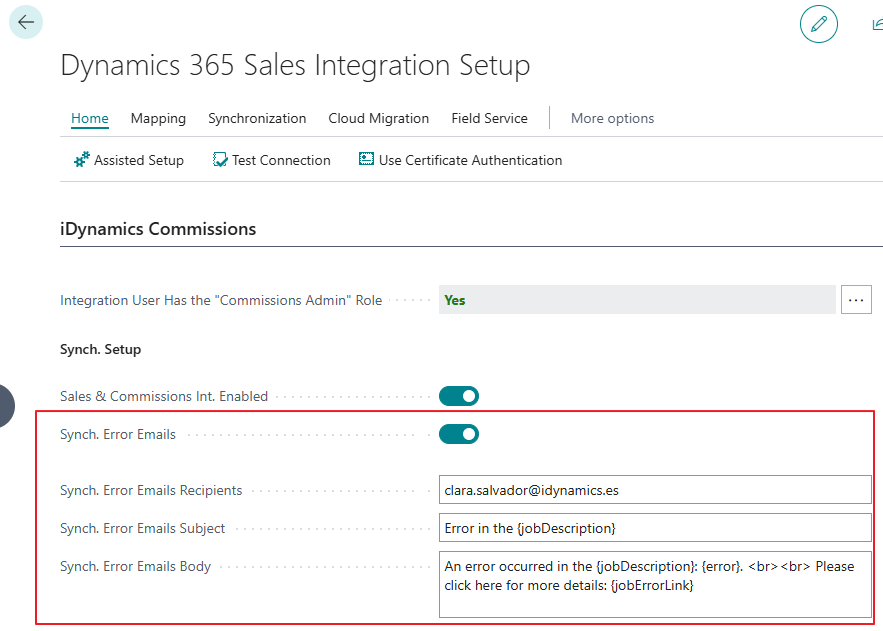
You only need to check the checkbox available for this and fill in the email address where these notifications will be received.
The subject and body are filled in by default, but can be modified if desired. We recommend keeping the suggested defaults because they contain keywords that are replaced by:
- {jobDescription}: the name of the synchronization job queue that caused the error.
- {Error}: the detailed description of the synchronization error, including the date/time it occurred.
- {jobErrorLink}: a link to the Business Central "Integration Synch. Error List" page showing only the record corresponding to this error.
We recommend not activating email error notifications for commissions and sales synchronization until the initial synchronization has been completed to avoid receiving many emails if it fails for any reason, since a large number of records — that is, all existing commissions and sales — are synchronized.
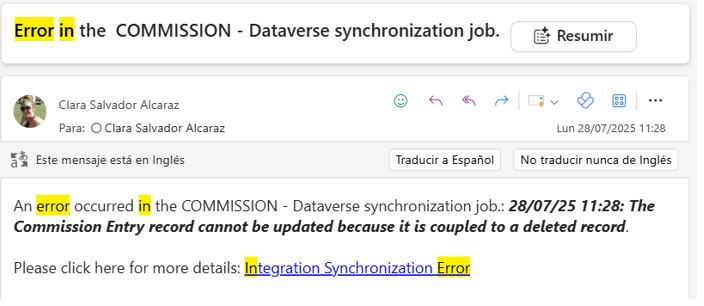
Below is an example of a synchronization error email for commissions.
Commissions and Sales Synchronization Log
In addition to the automatic email notification of possible synchronization errors for commissions and sales with Dynamics 365 Sales, our extension provides a synchronization log that can be checked to know its current status.
It is found on the Dynamics 365 Sales Integration Setup page page, within the iDynamics Commissions section.
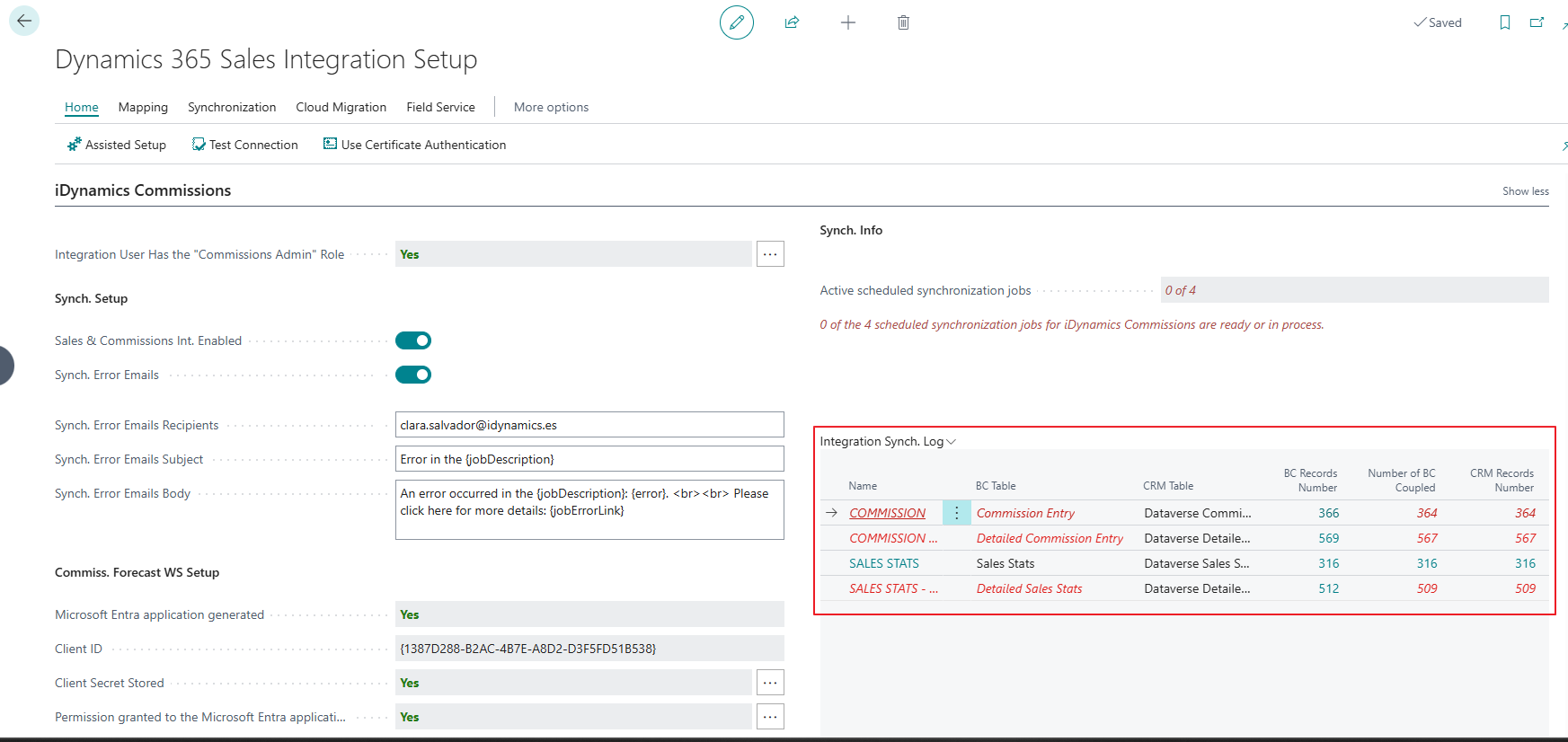
If the number of records for all four commissions and sales tables is the same in Business Central and Dynamics 365 Sales (all green), everything is synchronized. Otherwise, the tables with differences will be shown in red.
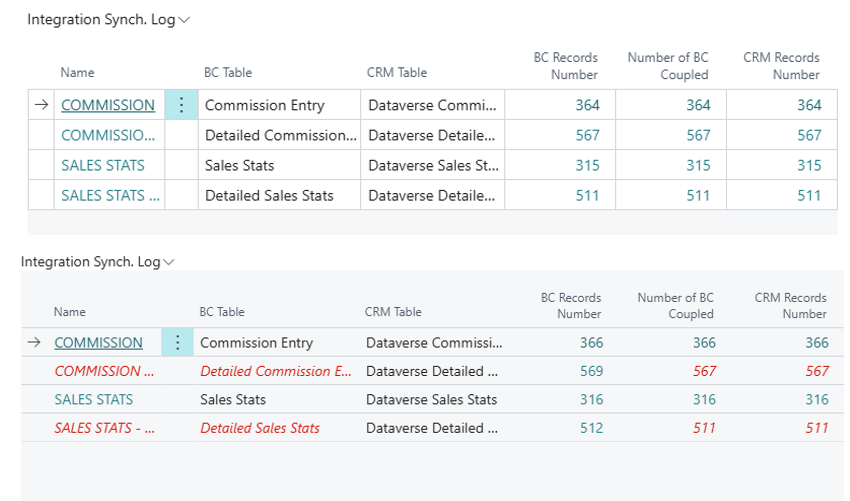
There is one nuance that cannot be seen in this synchronization log, which is the synchronization of modifications, since this log only compares the number of commission and sales records in Business Central and Dynamics 365 Sales, not the content. Therefore, the recommendation is to activate email error notifications for this synchronization, since it could happen that looking at this log everything seems fine but an error has occurred when synchronizing a modification.