Microsoft Entra ID Generation
This section explains how to generate a Microsoft Entra ID.
Access the Azure portal with an account with administrator privileges:
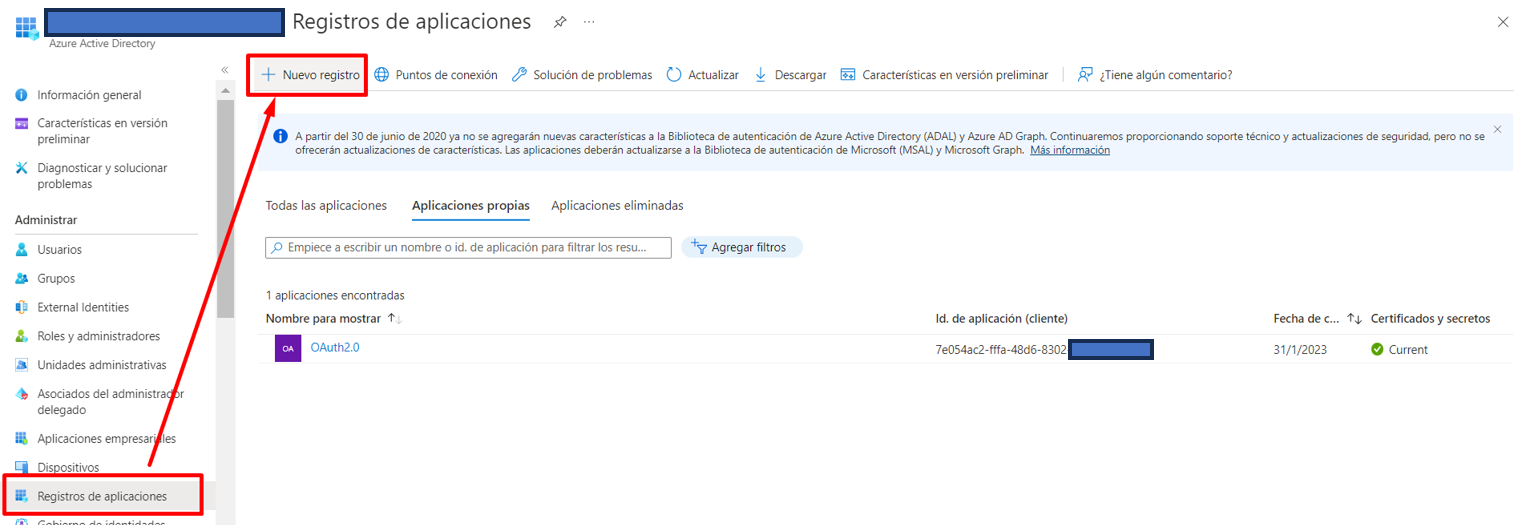
Navigate to app registrations to create a new registration:
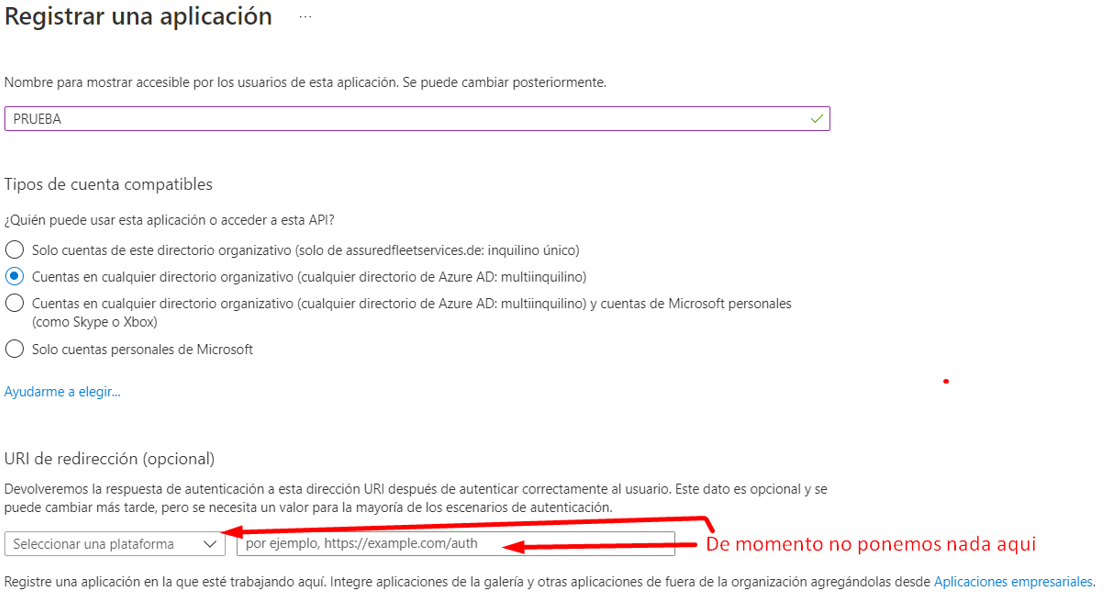
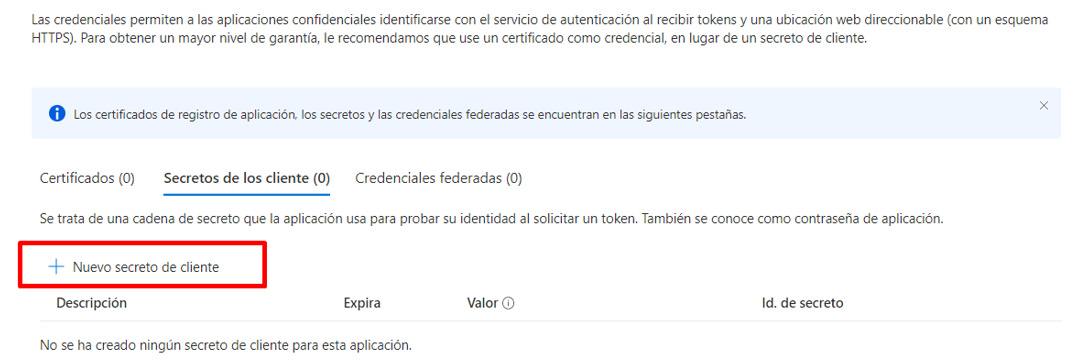
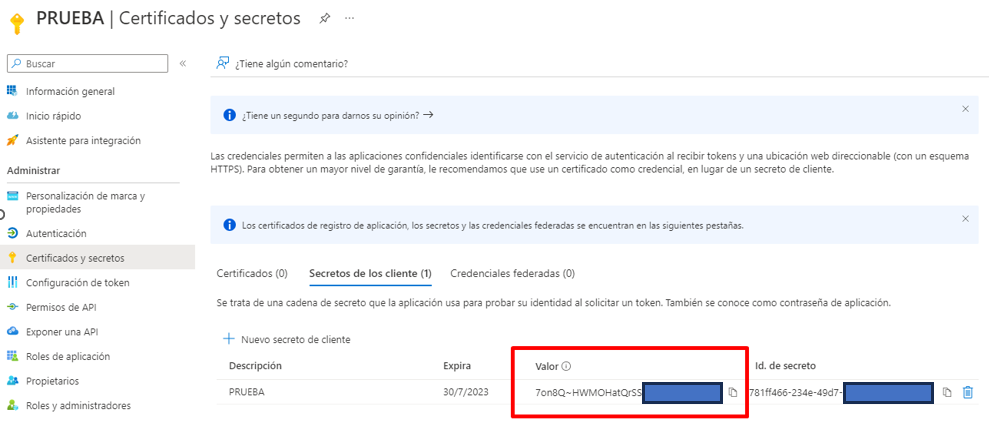
Add a client certificate or secret:

Define the expiration period (maximum allowed is 2 years):
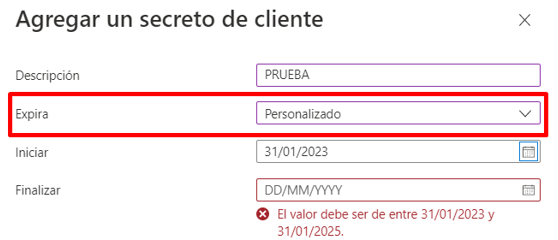
After confirming the result:
Add the redirect URI:
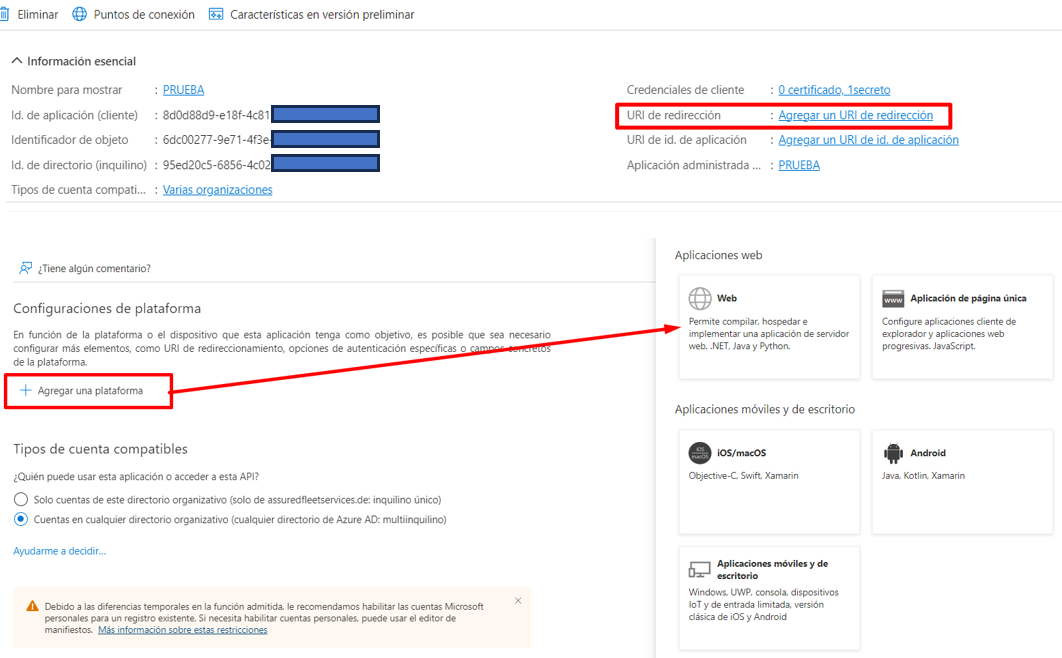
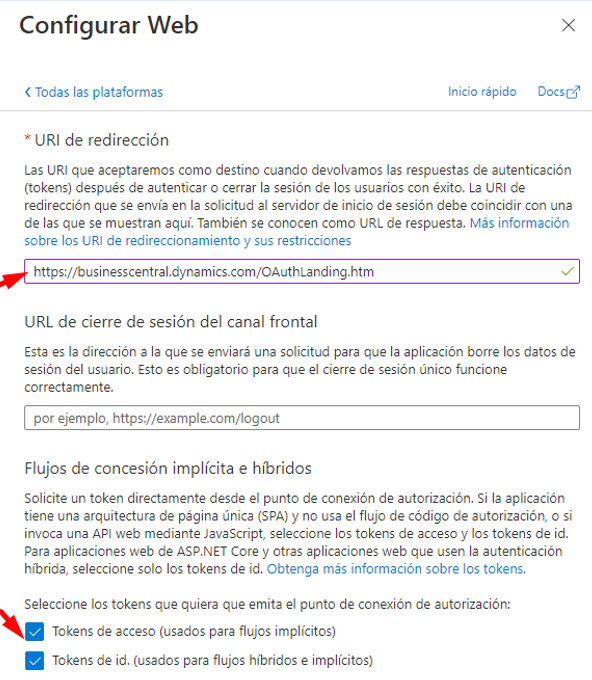
For the redirect URI enter: https://businesscentral.dynamics.com/OAuthLanding.htm and check both token options.
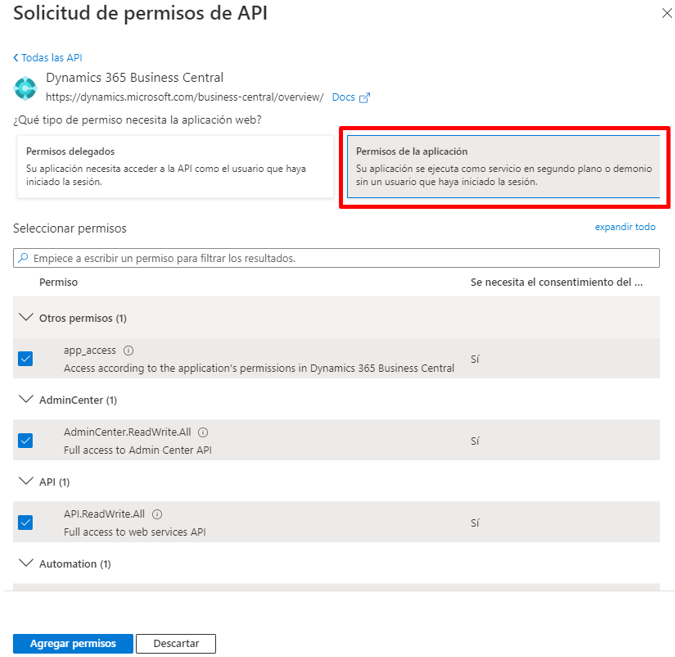
Grant API permissions for Business Central (check all options):
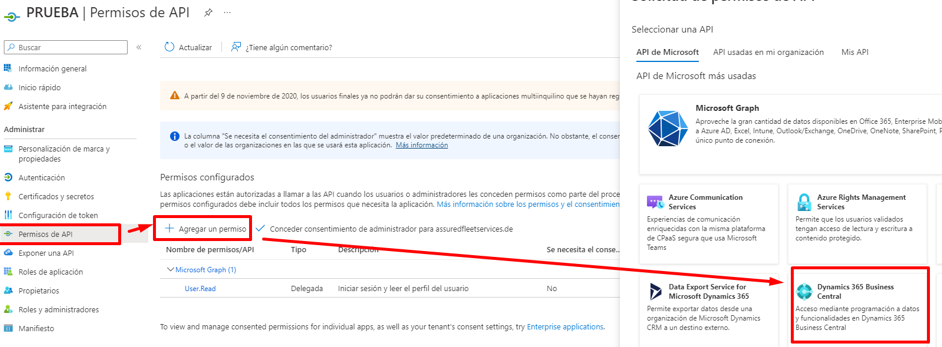
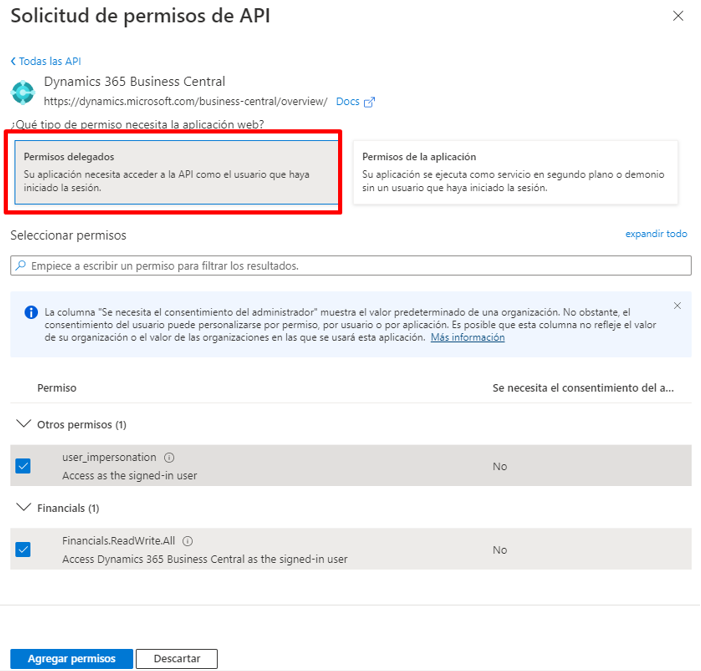
… and then the delegated permissions (also check all):
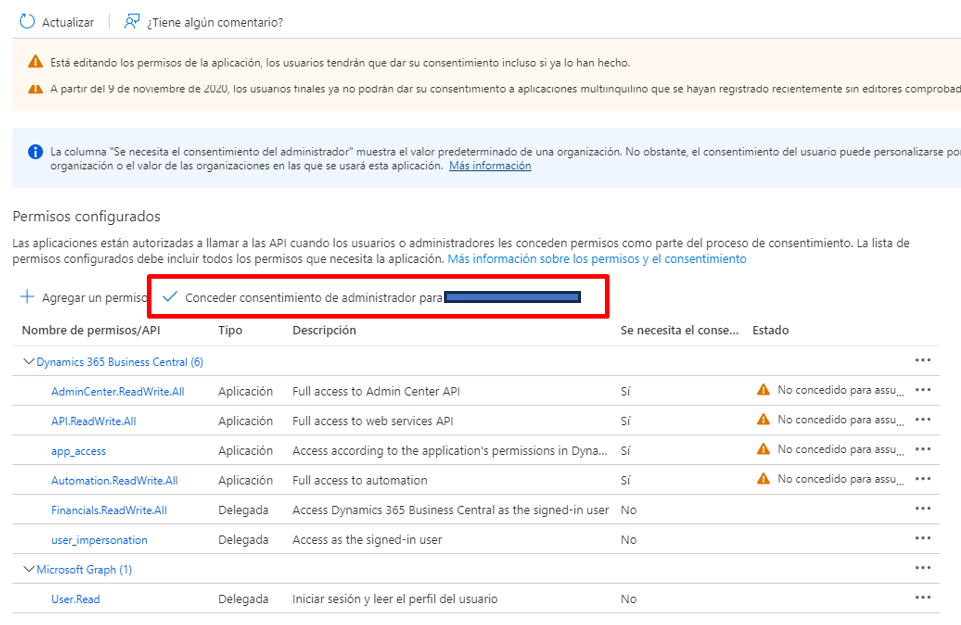
Click Grant consent:
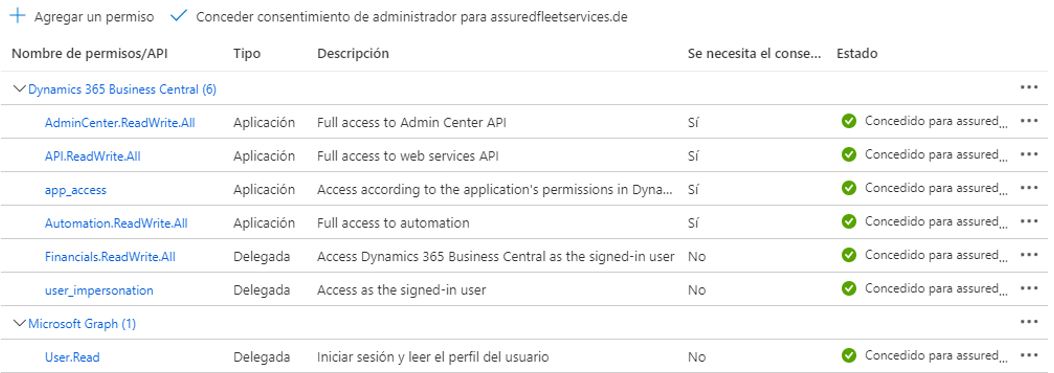
With this, the Azure part is complete and the result is as follows:
When adding the expiration period, the client secret value will be created. This value will only be visible at this moment, so it must be copied and saved for later use.