Commissions and Sales
When the iDynamics Commissions 365 Sales solution is installed in a Dynamics 365 Sales environment, it is added as an available app for use within the environment.
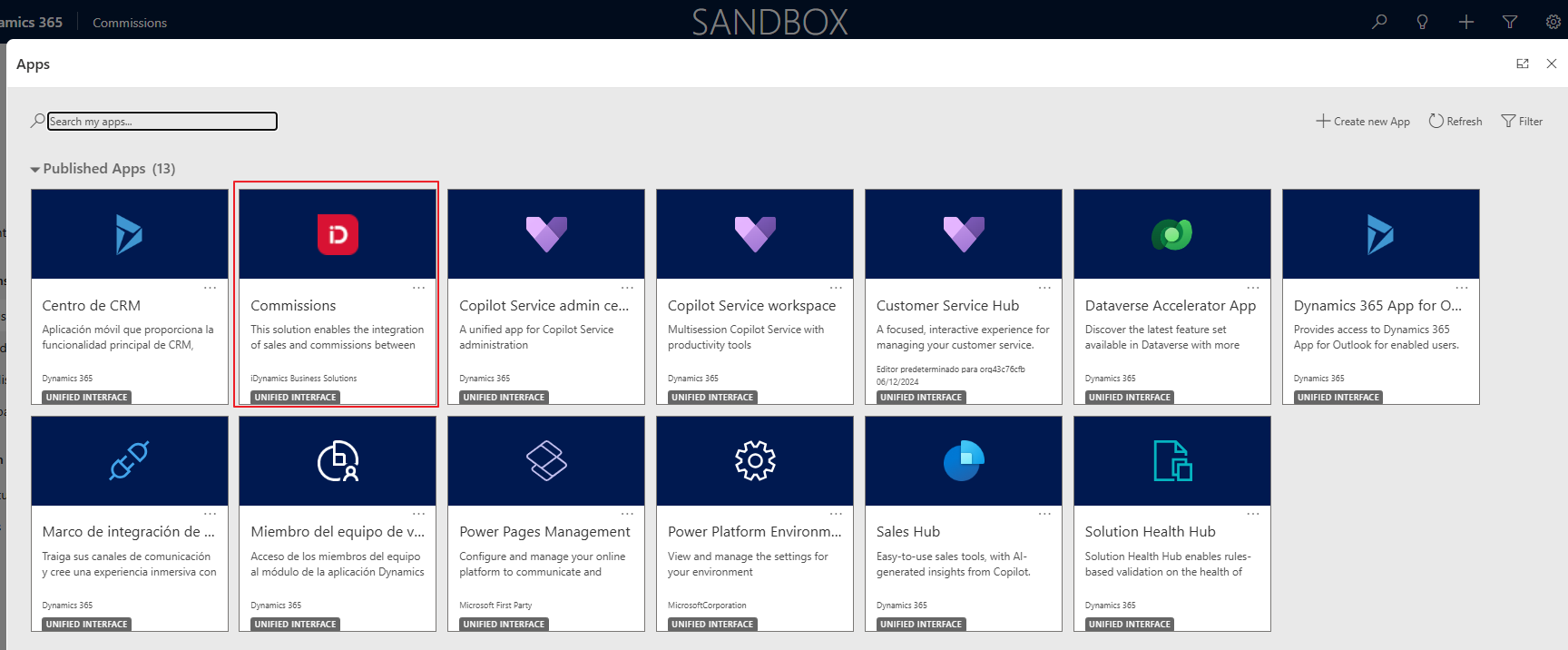
You need to open this app to view and analyze the commissions and sales information within Dynamics 365 Sales.
When you do, the main menu of the application is displayed, consisting mainly of two blocks.
- Commissions and Sales.
- Commission Forecast.
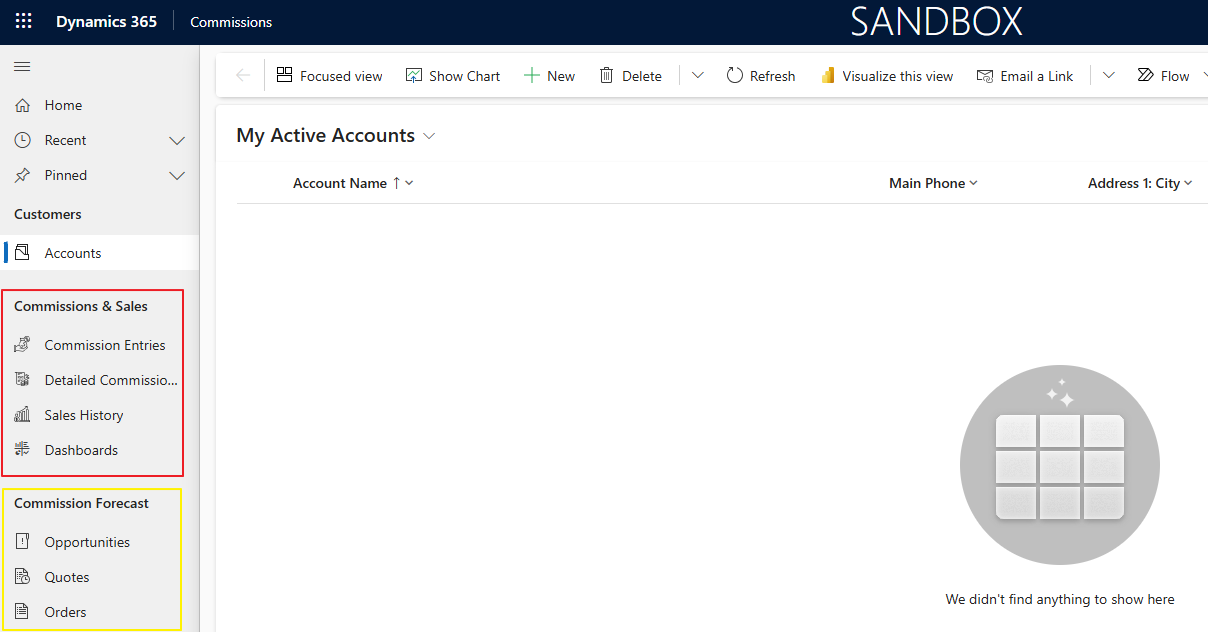
In this section we focus on the commissions and sales submenu and explain all the available options for viewing and analyzing the information.
Commissions
This section shows the commission entries for salespeople generated in Business Central — that is, the history of actual commissions granted to salespeople for their sales.
Conceptually, it shows information related to the total commission amounts as well as their status (pending, partially settled, fully settled, etc.).
It also shows the % collected of the related invoice, if the commission comes from a direct sale on an invoice. This data is relevant if commissions are settled upon full or partial collection of invoices — it can help a salesperson know whether a commission they are owed can be settled or not, depending on whether the related invoice has been collected, in the case of settlement by collection, or what percentage of the total commission they are owed can be settled in the case of partial collection. Both the % collected and the collection date of the invoice related to the commission are shown (the latter is only filled in when the invoice has been collected in full).
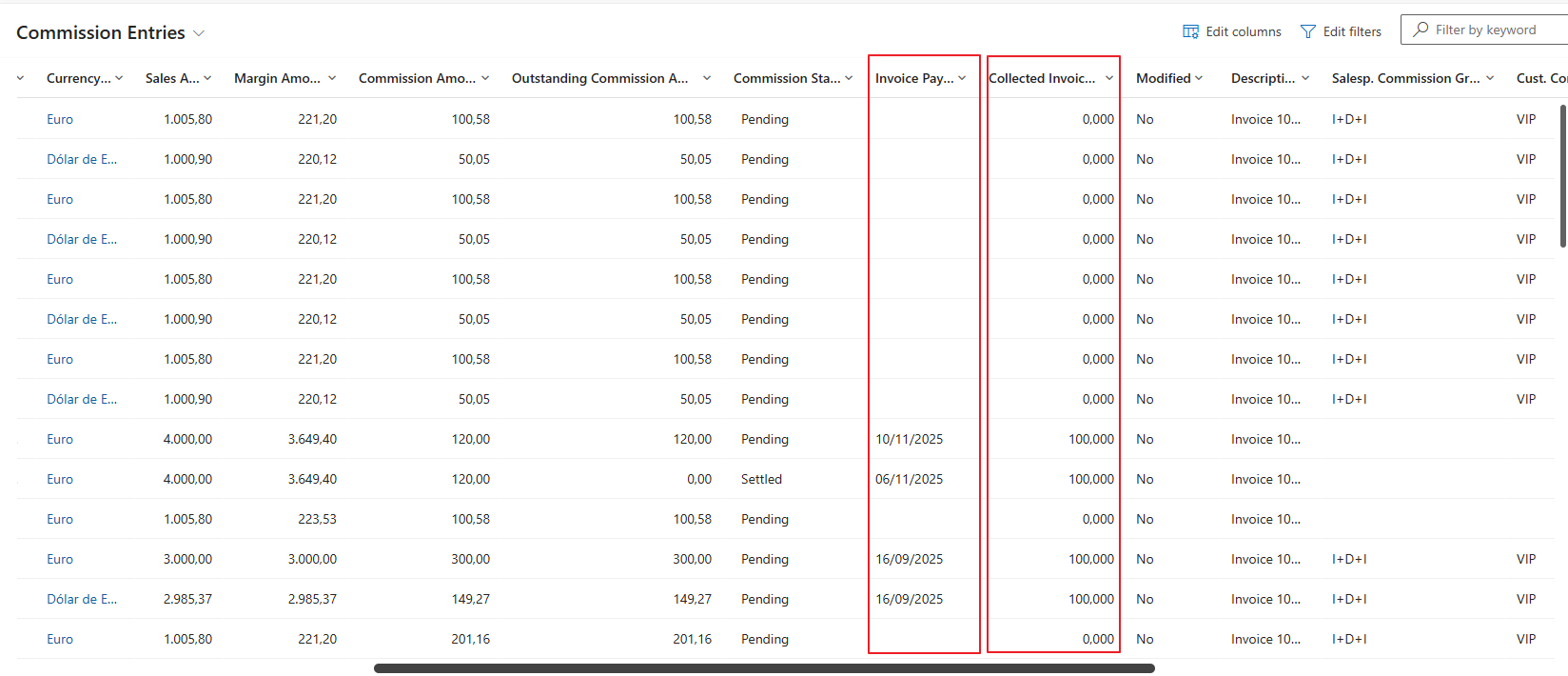
You can use all the capabilities that Dynamics 365 Sales offers to analyze commission information, both for salespeople who only see their own data and for sales managers who see data for all salespeople.
Predefined commission views
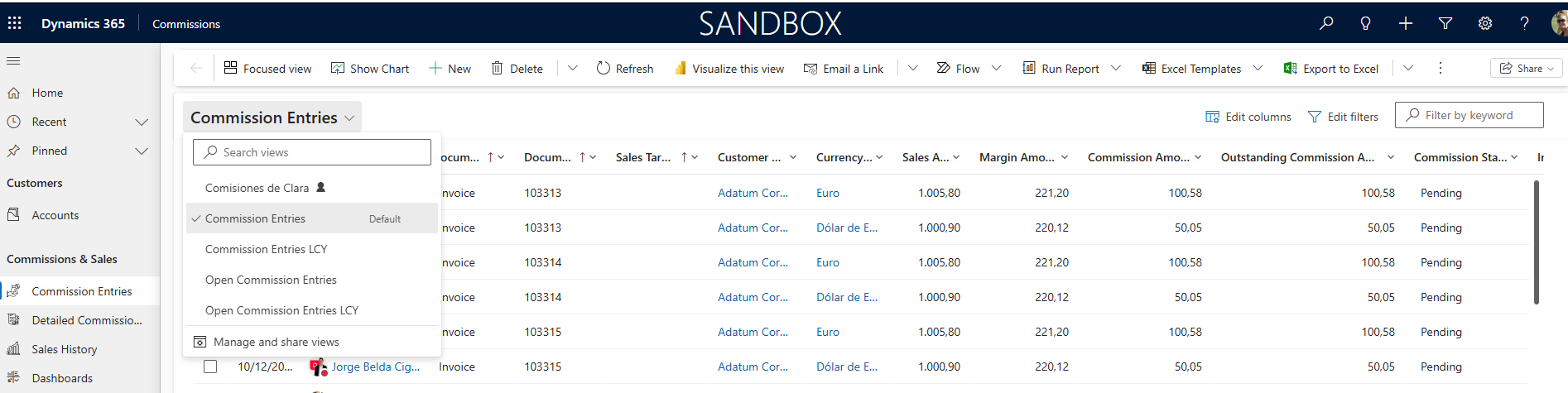
The solution provides several predefined views, and users can create, save and share custom views, just as in the rest of Dynamics 365 Sales.
- Commission Entries. The one shown by default. Shows the full history of commissions. It can be used to review commissions from previous years for comparisons, for example, or to see the commissions already settled in a given current period.
- Commission Entries (LCY) (in local currency). If whoever accesses the commissions can see commissions in different currencies — because they have salespeople with commissions in different currencies — it is advisable to either filter or group by currency in the previous view, or use this view where all amounts are shown in local currency so that the data is comparable and can be totaled. If all commissions are in the same currency, this view can be ignored.
- Open Commission Entries. Shows only pending commissions. If a commission has been partially settled, this view will show the remaining amount pending settlement relative to the total.
- Open Commission Entries (LCY) (in local currency). All amounts are in local currency. If all commissions are in the same currency, this view can be ignored.
Commission filters
As in the rest of Dynamics 365 Sales views, in these commission entry views you can apply the filters you need, total amounts, show an average, etc.
You can filter by applying filters on the desired columns, by editing the view filters, or with quick keyword filters, as in any Dynamics 365 Sales view.
The most common filters are:
- By date. Recommended since it covers the entire history.
- By type. Whether the commissions are directly related to a specific sale, or come from sales targets set for a given period, advances, etc.
- By salesperson. For sales managers who see commissions for all salespeople.
- By customer.
- By status. For example, for a salesperson to see which commissions are pending settlement in a given period.
- By salesperson group.
- By customer group.
- By company. If there are multiple Business Central companies synchronized with the same Dynamics 365 Sales environment, commissions can be filtered by company if needed.
There are a number of predefined filters that should not be modified for the solution to work correctly.
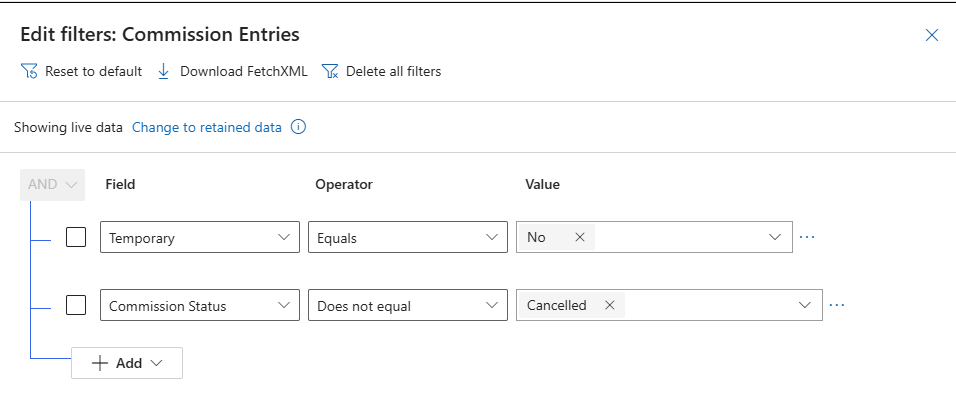
- Temporary = No. Required to exclude from these actual commission views the forecast commissions for ongoing sales opportunities that we do not know will materialize and, therefore, whether the commissions will become actual.
- Commission Status <> Cancelled. Cancelled commissions are not synchronized with Dynamics 365 Sales and, if one that was already synchronized is cancelled in Business Central, it is deleted from Dynamics 365 Sales, so there should not be any. Just in case, this filter is left so that if totals are calculated, cancelled commission amounts are never included.
Commission groupings
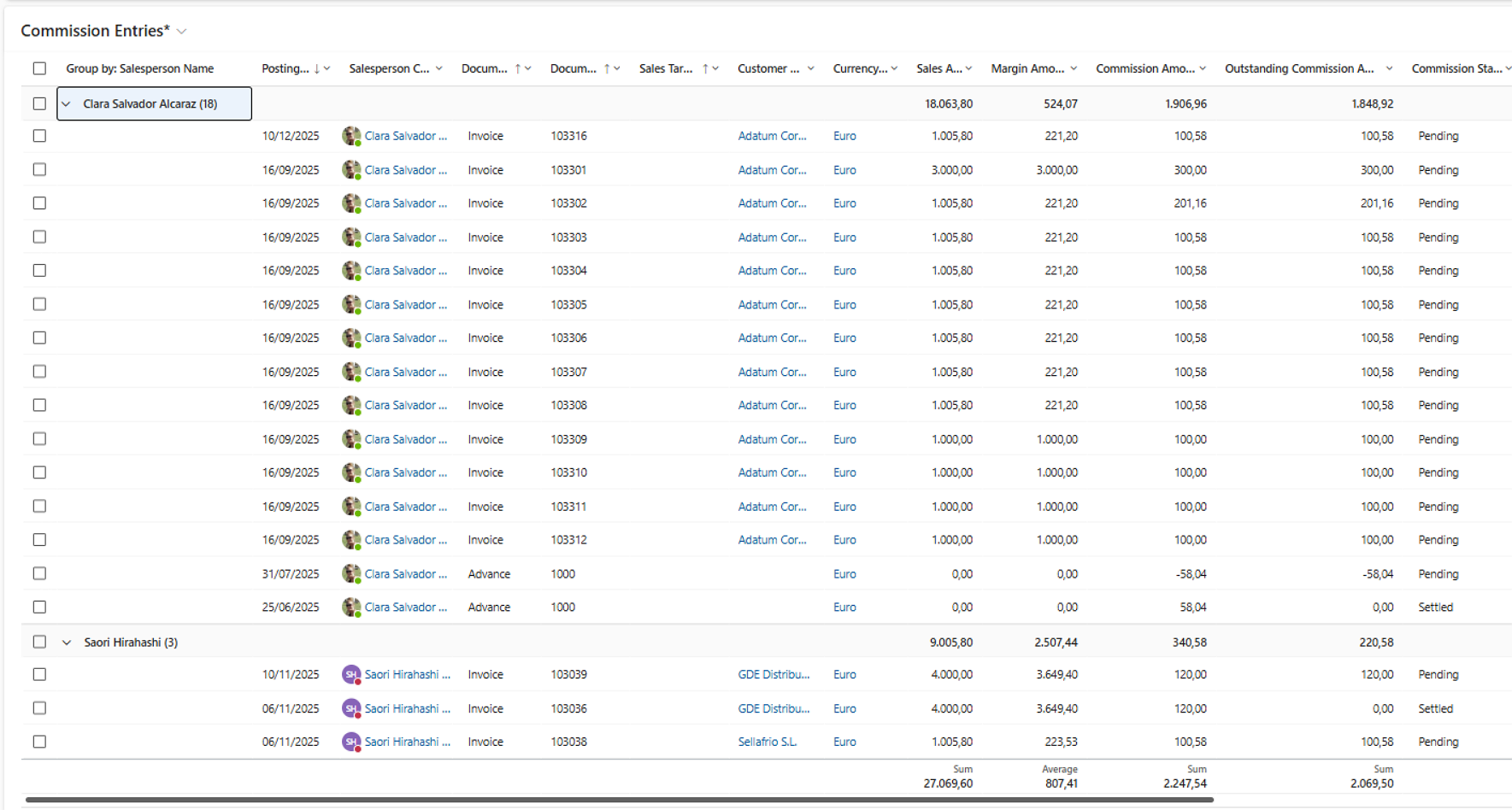
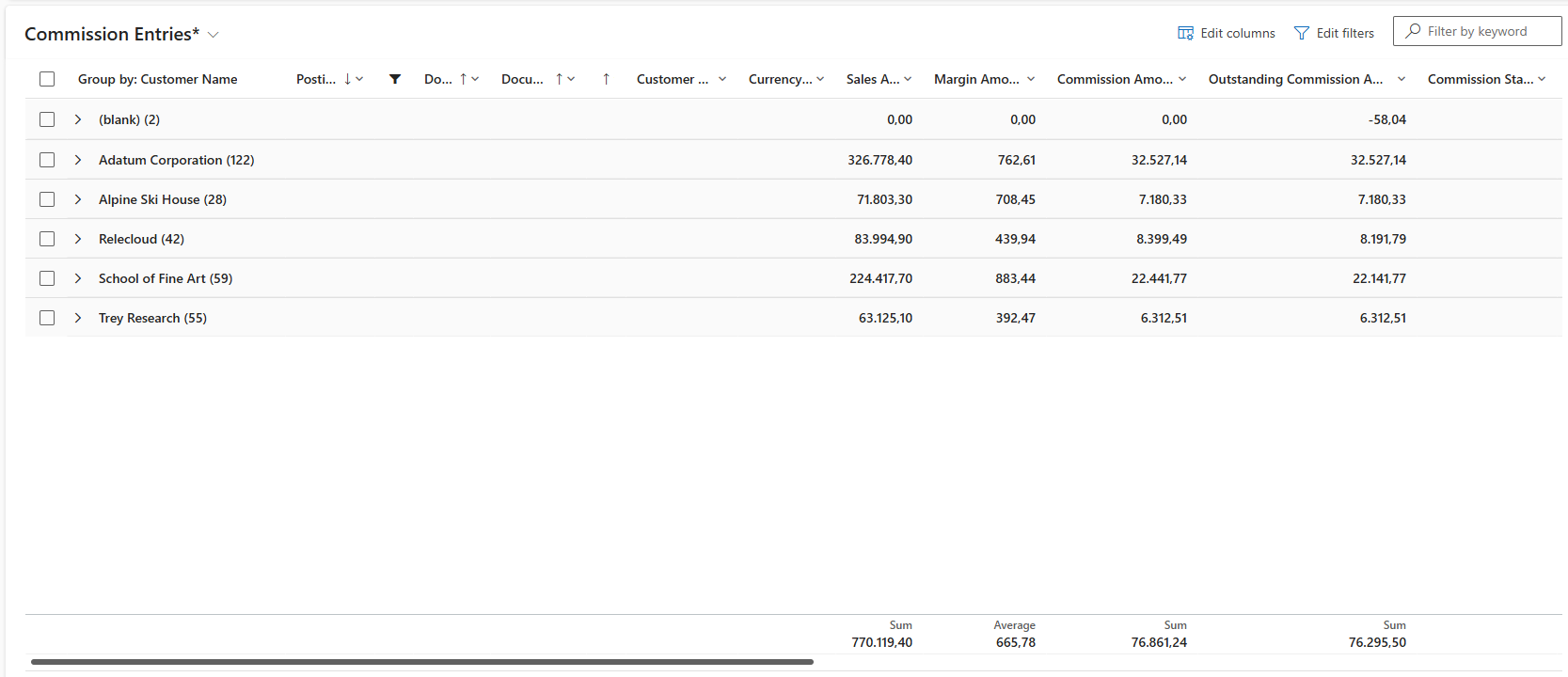
In addition to applying filters, commissions can be grouped by the concepts of interest and amounts totaled or shown as an average for those groupings.
In this regard, it is worth noting that Dynamics 365 Sales does not allow grouping by columns that are lookup fields referencing other tables, such as salesperson, customer or currency. However, since these are columns by which filters will normally need to be applied, our solution adds three text-type columns at the end that display the same information so that you can group by this data, given its importance.
It is recommended to use the columns that reference other tables for filtering since they suggest values.

The duplicate text-type columns must be used to group by them.

Below are several examples of groupings on the commission entries view.
Example for a sales manager. The detail can be collapsed if only totals are desired.
Example for a single salesperson. The detail can be expanded if desired.
Commission Entry form
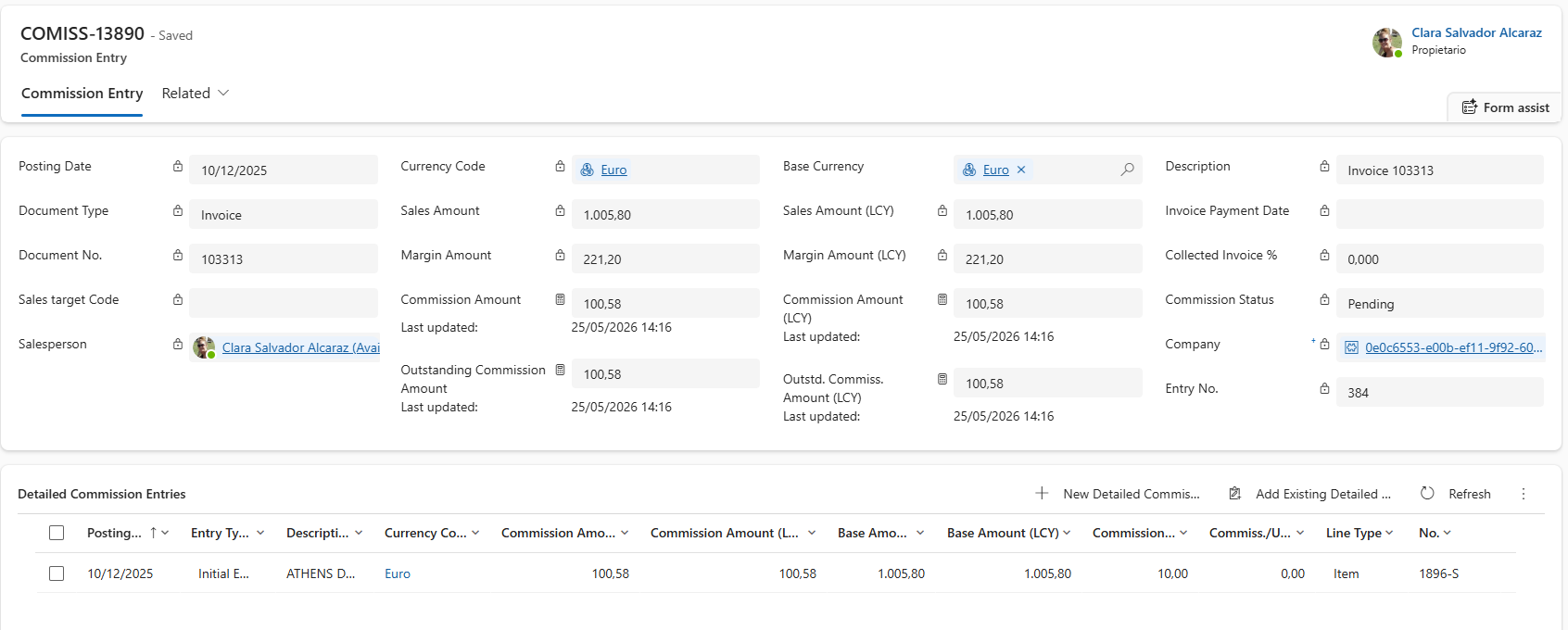
The commission entry view does not show all the fields of the commission entry record, and the user can also remove columns to show less information, but a specific record from the commission view can always be opened to see the full detail of all its fields.
As can be seen in the image, all the detailed commission entries that make up a given commission entry are also shown.
Detailed Commissions
This section shows the detailed commission entries for salespeople generated in Business Central — that is, the history of actual detailed commissions granted to salespeople for their sales.
Conceptually, it shows information related to the commission amount detail for each sales line, which is normally linked to the item. Totaling gives the total sales and commission amount, similar to what can be obtained from the commission entry views. These views are mainly for viewing amounts by item or item group. It shows the detail of why a given commission amount was obtained for a given sales line, showing the base (usually the sales line amount) and the commission percentage applied to it, as well as a fixed commission amount, for example if a fixed commission amount per sold unit of an item is applied. This can help salespeople verify that the commissions obtained are as expected according to the conditions established with the company.
- It does not make sense to show the commission status here because the status refers to the total amount of the commission entry, not per line or detail. If partially settled, it does not necessarily correspond to one or more detail lines (detail lines are not settled individually — part or all of the total amount of a commission is settled).
- Settlements are not shown here (detailed commission entries of settlement type). Only the detailed entries that, when added together, make up the total amount of the commission entry are shown.
You can use all the capabilities that Dynamics 365 Sales offers to analyze detailed commission information, both for salespeople who only see their own data and for sales managers who see data for all salespeople.
Predefined detailed commission views
The solution provides several predefined views, and users can create, save and share custom views, just as in the rest of Dynamics 365 Sales.
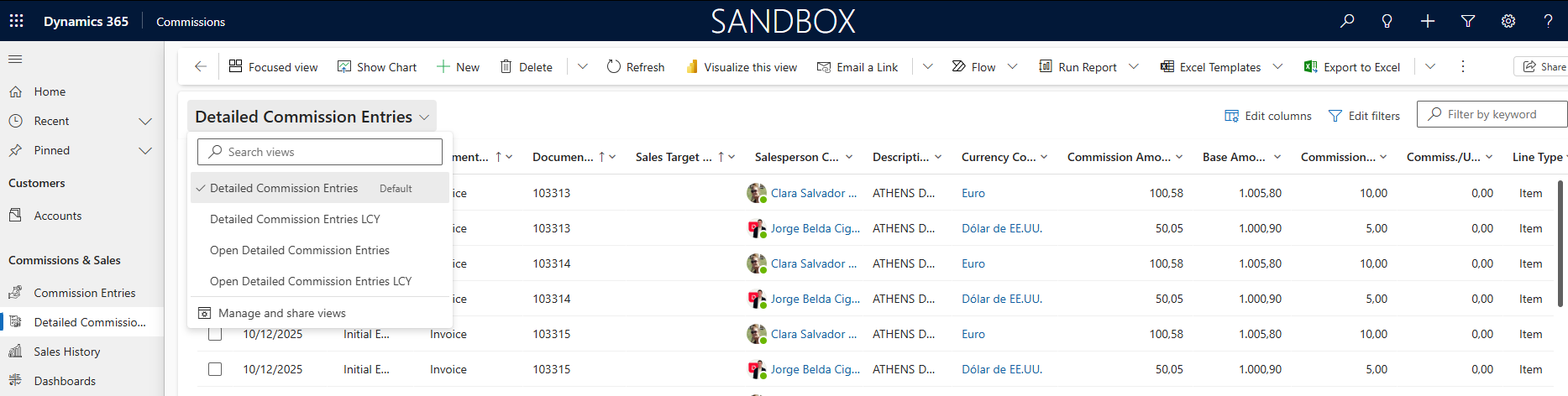
- Detailed Commission Entries. The one shown by default. Shows the full history of detailed commissions that, when added together, make up the total amount of the commission entry (settlements are not shown). It can be used to review detailed commissions from previous years for comparisons, for example by item. It can also help salespeople verify that the commissions obtained are as expected according to the conditions established with the company.
- Detailed Commission Entries (LCY) (in local currency). If whoever accesses the commissions can see commissions in different currencies — because they have salespeople with commissions in different currencies — it is advisable to either filter or group by currency in the previous view, or use this view where all amounts are shown in local currency so that the data is comparable and can be totaled. If all commissions are in the same currency, this view can be ignored.
- Open Detailed Commission Entries. Shows only the detailed entries of commissions pending settlement.
- Open Detailed Commission Entries (LCY) (in local currency). All amounts are in local currency. If all commissions are in the same currency, this view can be ignored.
Detailed commission filters
As in the rest of Dynamics 365 Sales views, in these detailed commission entry views you can apply the filters you need, total amounts, show an average, etc.
You can filter by applying filters on the desired columns, by editing the view filters, or with quick keyword filters, as in any Dynamics 365 Sales view.
The most common filters are:
- By date. Recommended since it covers the entire history.
- By commission type. Whether the commissions are directly related to a specific sale, or come from sales targets set for a given period, advances, etc.
- By detailed commission type. To know if they are of the "Initial Entry" type, which correspond to sales lines, or of the "Adjustment" type, for manual adjustments made after the invoice is posted to modify the calculated commission amount, or of the penalty type if a late payment penalty applies, or early payment discount type if one applies on the invoice collection, etc.
- By salesperson. For sales managers who see commissions for all salespeople.
- By item.
- By salesperson group.
- By sales team.
- By item group.
- By company. If there are multiple Business Central companies synchronized with the same Dynamics 365 Sales environment, detailed commissions can be filtered by company if needed.
There are a number of predefined filters that should not be modified for the solution to work correctly.
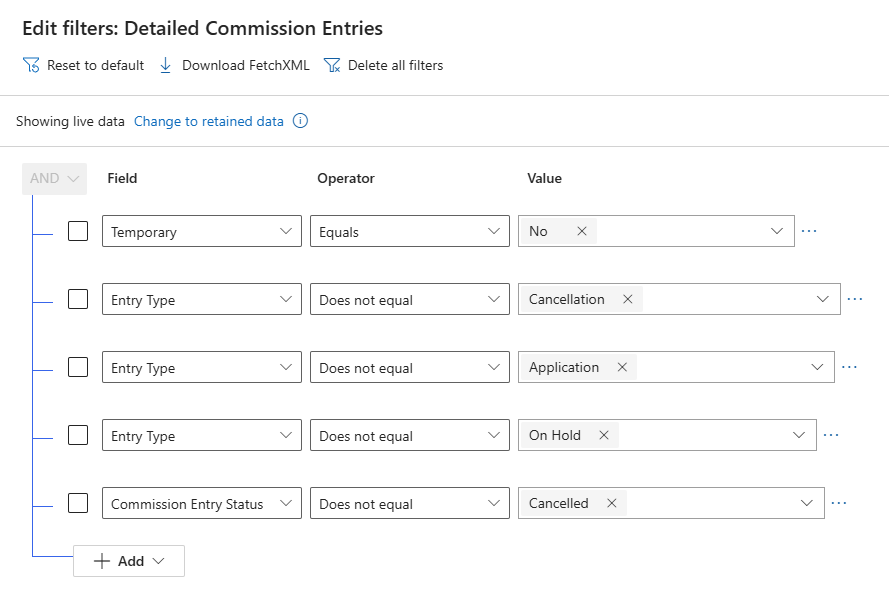
- Temporary = No. Required to exclude from these actual detailed commission views the forecast detailed commissions for ongoing sales opportunities that we do not know will materialize and, therefore, whether the detailed commissions will become actual.
- Commission Status <> Cancelled. Cancelled commissions are not synchronized with Dynamics 365 Sales and, if one that was already synchronized is cancelled in Business Central, it is deleted from Dynamics 365 Sales, so there should not be any. Just in case, this filter is left so that if totals are calculated, cancelled commission amounts are never included.
- Entry Type <> Settlement. As mentioned earlier, settlements are not shown — only the detailed entries that, when added together, make up the total amount of the commission entry: initial entries from each sales line, manual adjustments, penalties, early payment discounts, etc.
- Entry Type <> On Hold. As mentioned earlier, only the detailed entries that, when added together, make up the total amount of the commission entry are shown: initial entries from each sales line, manual adjustments, penalties, early payment discounts, etc. If a given commission is put on hold to prevent its settlement for any reason, the "On Hold" type detailed entries generated for this are not shown in this view as they do not provide relevant information.
- Entry Type <> Cancellation. As mentioned earlier, only the detailed entries that, when added together, make up the total amount of the commission entry are shown: initial entries from each sales line, manual adjustments, penalties, early payment discounts, etc. If a given commission is cancelled, the "Cancellation" type detailed entries generated for this are not shown in this view as they do not provide relevant information.
Detailed commission groupings
In addition to applying filters, detailed commissions can be grouped by the concepts of interest and amounts totaled or shown as an average for those groupings.
In this regard, it is worth noting that Dynamics 365 Sales does not allow grouping by columns that are lookup fields referencing other tables, such as salesperson, customer or currency. However, since these are columns by which filters will normally need to be applied, our solution adds three text-type columns at the end that display the same information so that you can group by this data, given its importance.
It is recommended to use the columns that reference other tables for filtering since they suggest values.
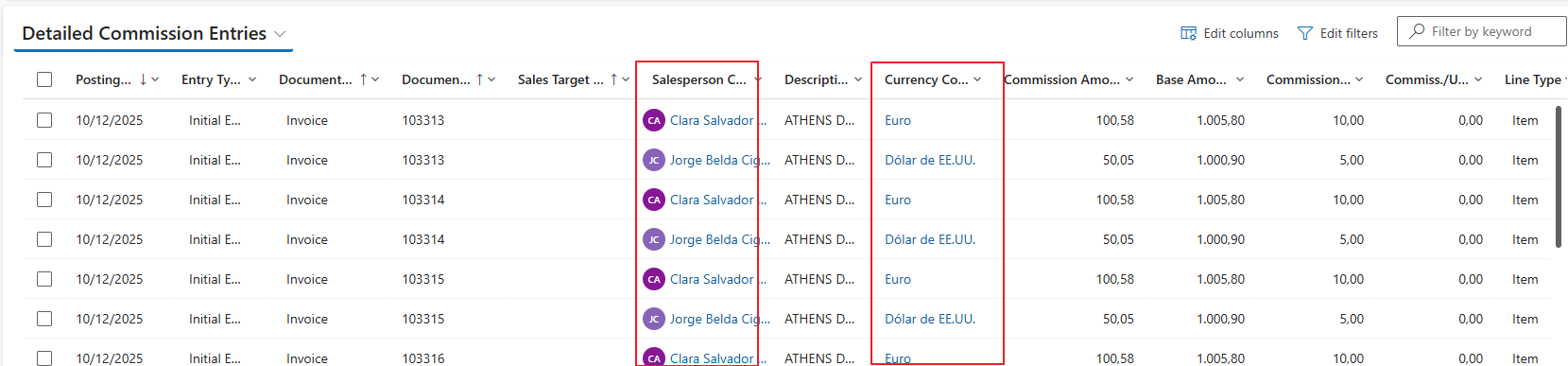
The duplicate text-type columns must be used to group by them.

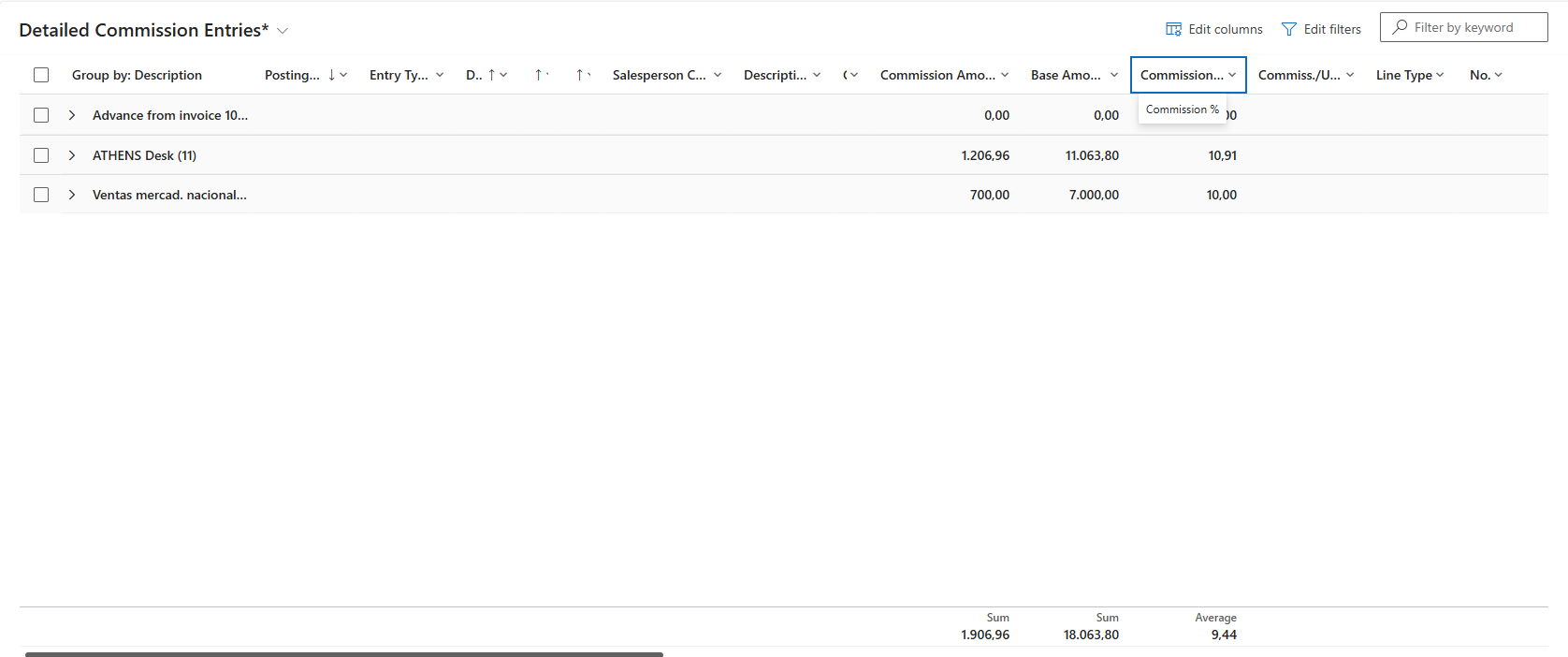
Below are several examples of groupings on the detailed commission entries view.
Example for a sales manager. The detail can be collapsed if only totals are desired.
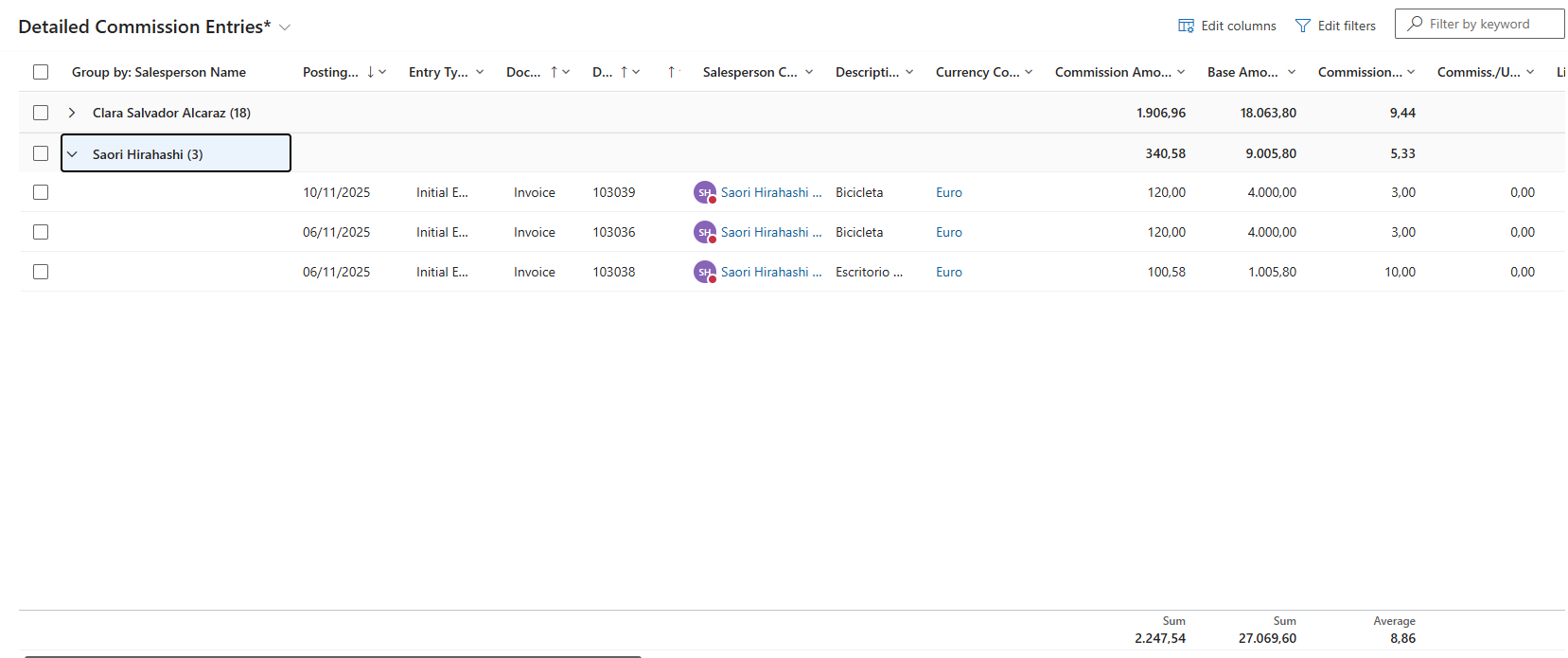
Example for a single salesperson. The detail can be expanded if desired.
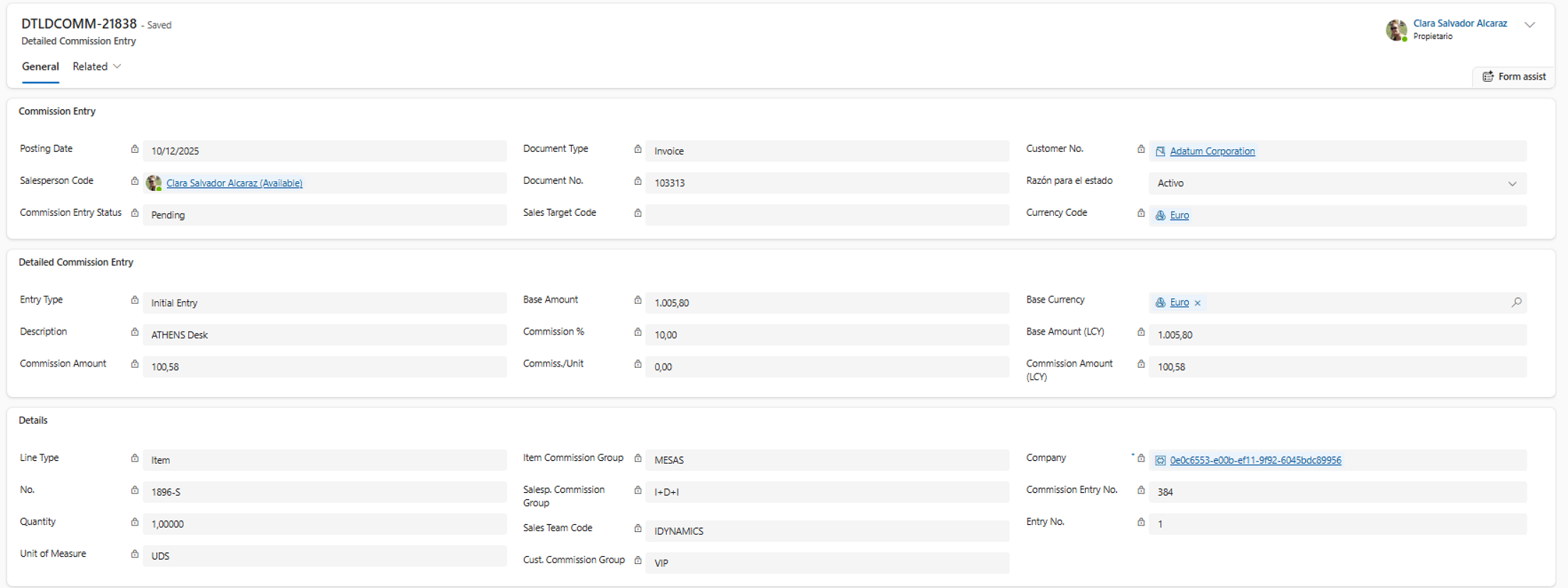
Detailed Commission Entry form
The detailed commission entry view does not show all the fields of the detailed commission entry record, and the user can also remove columns to show less information, but a specific record from the detailed commission view can always be opened to see the full detail of all its fields.
Sales History
This section shows the detailed sales statistics generated in Business Central by the iDynamics Commissions app, which contain more relevant information for commissions than posted sales invoices — that is, the actual sales history for salespeople posted in Business Central.
Conceptually, it shows information related to the sales detail per line (item) and salesperson, as well as the due date and payment date. If you sum all the sales or margin amounts from all the details of the same invoice, you get the corresponding total amount.
Detailed sales statistics are shown rather than sales statistics because, on a single sales invoice, multiple salespeople may be involved — not just one. For example, a primary salesperson for the invoice, but also an additional salesperson who receives a percentage of the primary salesperson's sale. In the detailed statistics, a detail line is generated for each invoice line and salesperson, applying the corresponding sales percentage to each.
You can use all the capabilities that Dynamics 365 Sales offers to analyze commission information, both for salespeople who only see their own data and for sales managers who see data for all salespeople.
Predefined sales history views
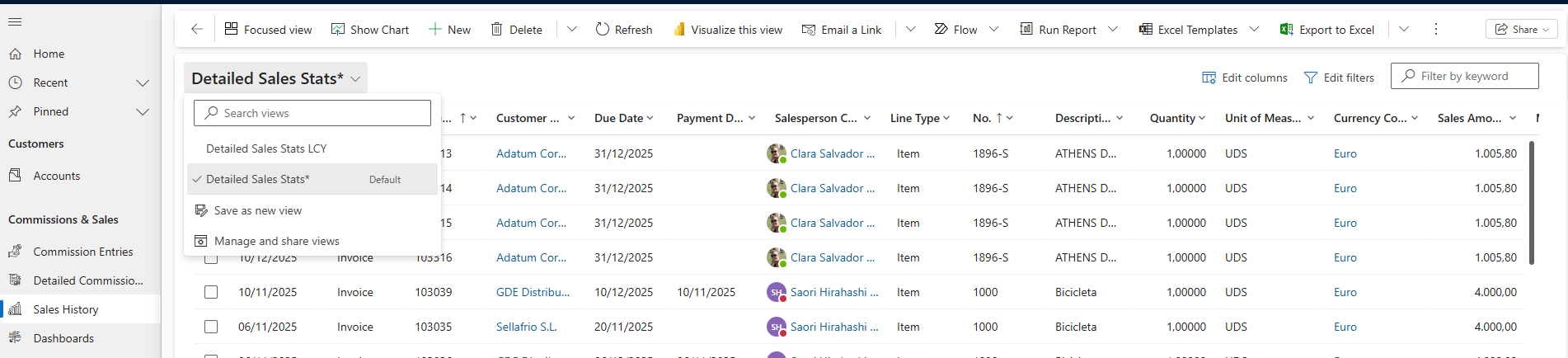
The solution provides several predefined views, and users can create, save and share custom views, just as in the rest of Dynamics 365 Sales.
- Detailed Sales Statistics. The one shown by default. Shows the full detail of the sales history. It can be used to review sales from previous years for comparisons, for example, or to help salespeople anticipate when their commissions may be settled if settlement is based on invoice collection, by looking at the due date and payment date.
- Detailed Sales Statistics (LCY) (in local currency). If sales can be in different currencies, it is advisable to either filter or group by currency in the previous view, or use this view where all amounts are shown in local currency so that the data is comparable and can be totaled. If all sales are in the same currency, this view can be ignored.
Sales history filters
As in the rest of Dynamics 365 Sales views, in these sales history views you can apply the filters you need, total amounts, show an average, etc.
You can filter by applying filters on the desired columns, by editing the view filters, or with quick keyword filters, as in any Dynamics 365 Sales view.
The most common filters are:
- By posting date. Recommended since it covers the entire history.
- By due date or payment date. Can help a salesperson anticipate when their commissions may be settled if settlement is based on invoice collection, or help a sales manager know the payment status of all sales for a given period.
- By document type. Whether they are sales invoices or credit memos, or sales manually entered from the journal available for this in iDynamics Commissions.
- By salesperson. For sales managers who see sales for all salespeople.
- By customer.
- By item.
- By salesperson group.
- By sales team.
- By customer group.
- By item group.
- By sales territory.
- By company. If there are multiple Business Central companies synchronized with the same Dynamics 365 Sales environment, sales can be filtered by company if needed.
Sales history groupings
In addition to applying filters, sales can be grouped by the concepts of interest and amounts totaled or shown as an average for those groupings.
In this regard, it is worth noting that Dynamics 365 Sales does not allow grouping by columns that are lookup fields referencing other tables, such as salesperson, customer or currency. However, since these are columns by which filters will normally need to be applied, our solution adds three text-type columns at the end that display the same information so that you can group by this data, given its importance.
It is recommended to use the columns that reference other tables for filtering since they suggest values.
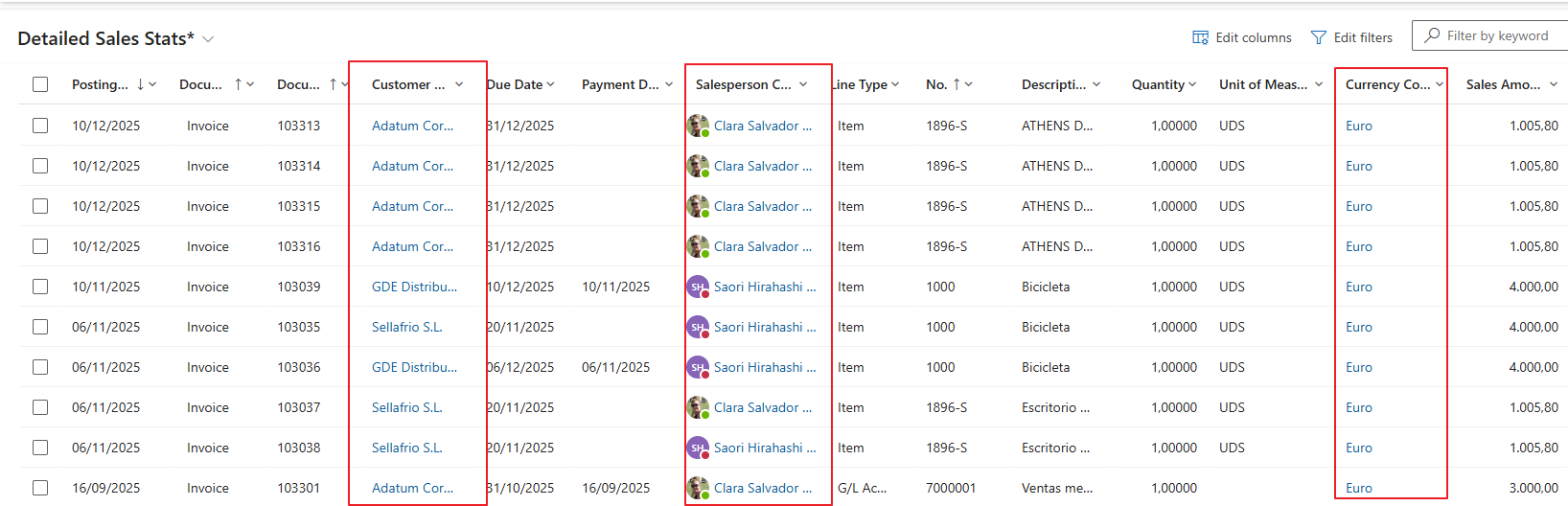
The duplicate text-type columns must be used to group by them.
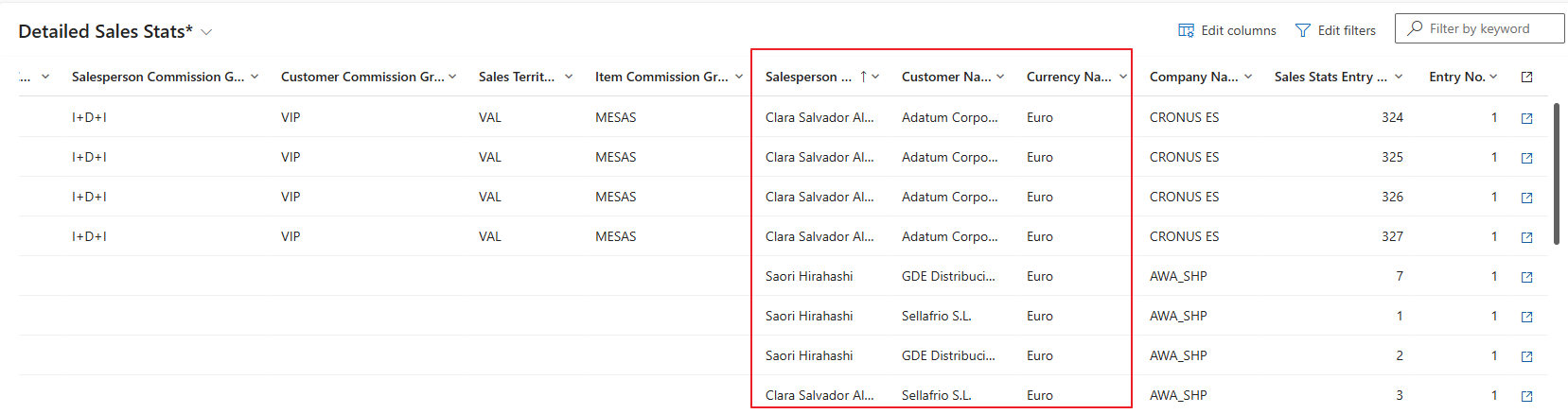
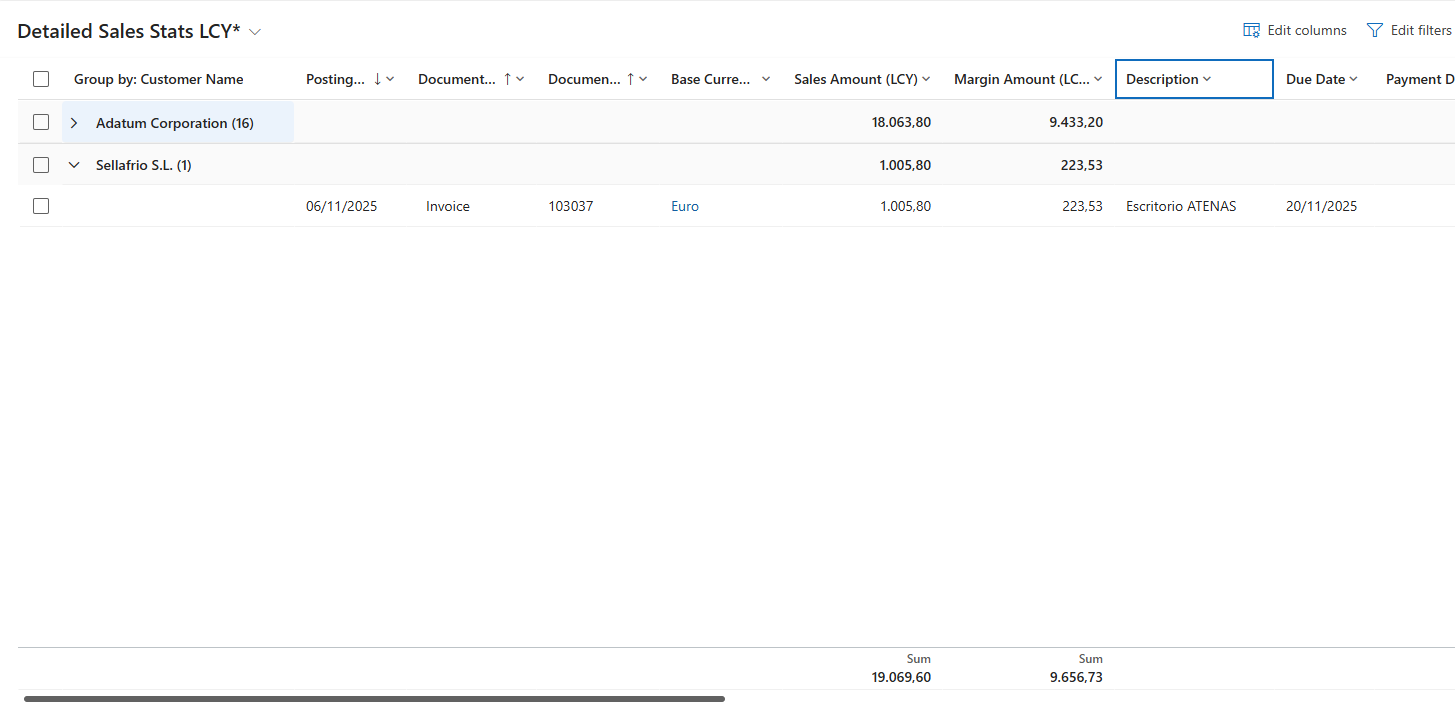
Below are several examples of groupings on the sales history view.
Example for a sales manager. The detail can be collapsed if only totals are desired.
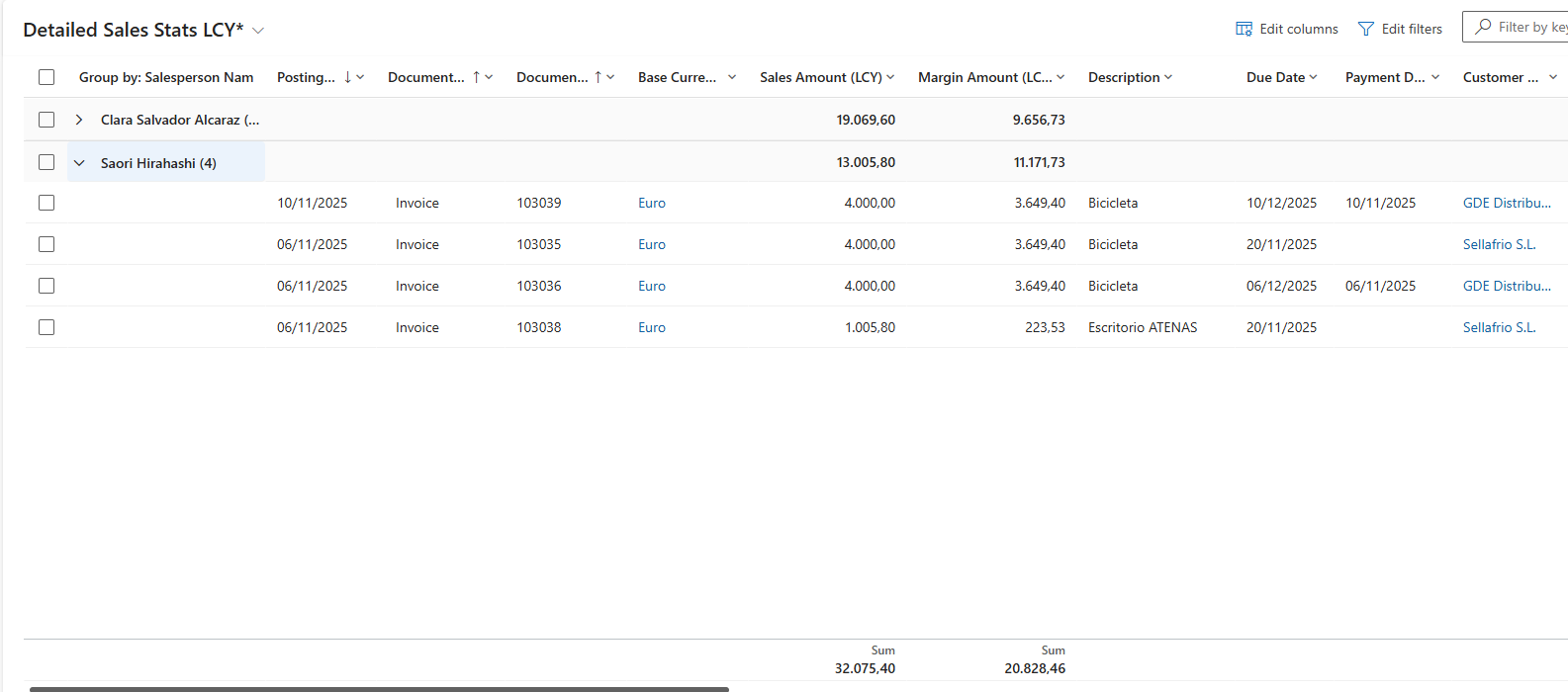
Example for a single salesperson. The detail can be expanded if desired.
Sales History form
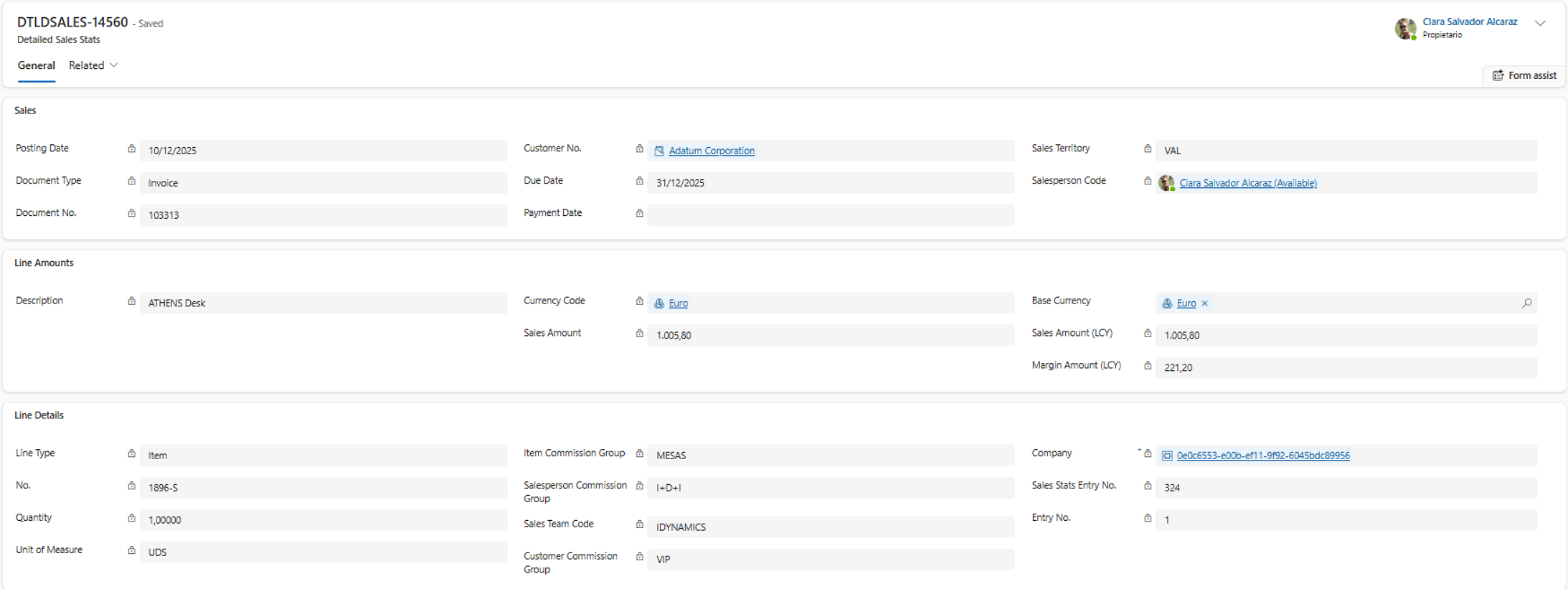
The sales history view does not show all the fields of the detailed sales statistics record, and the user can also remove columns to show less information, but a specific record from the sales history view can always be opened to see the full detail of all its fields.
Dashboards
The iDynamics Commissions 365 Sales solution offers, in addition to the views described above, interactive dashboards — one per entity — where several charts are displayed to view information by different concepts at the same time, and on which the user can apply global filters so that they apply simultaneously to all charts in the dashboard.
They can be useful for quickly visualizing commissions and sales information graphically.
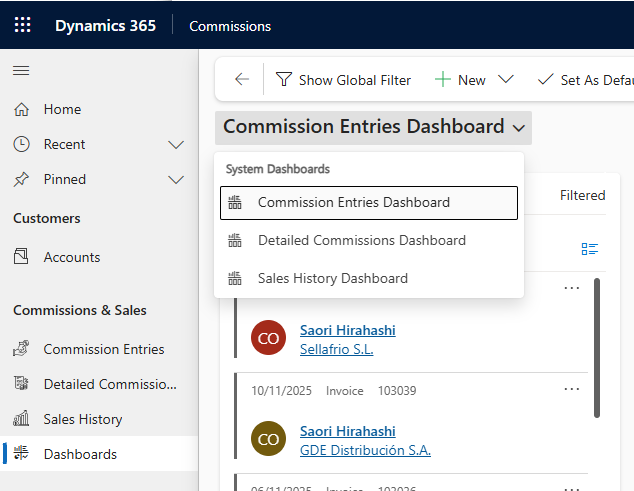
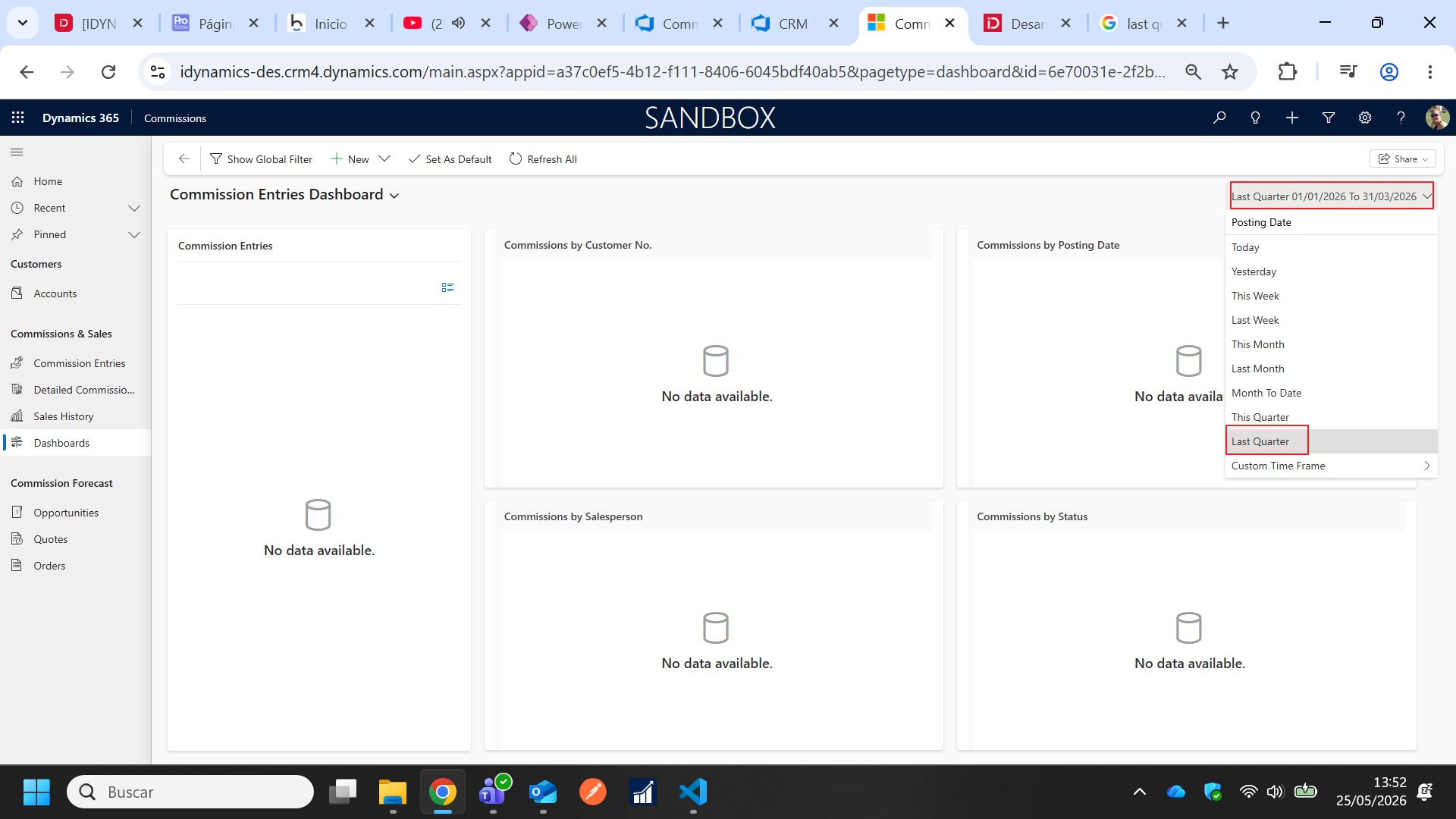
In all of them, a default time period must be defined as a filter, and the following has been defined in the solution: last quarter of the current year.
- The user can modify this default filter manually each time they open any of the three dashboards in the solution.
- Or they can ask the usual partner to modify it in the Dynamics 365 Sales environment so that a different default is used and it does not need to be changed every time.
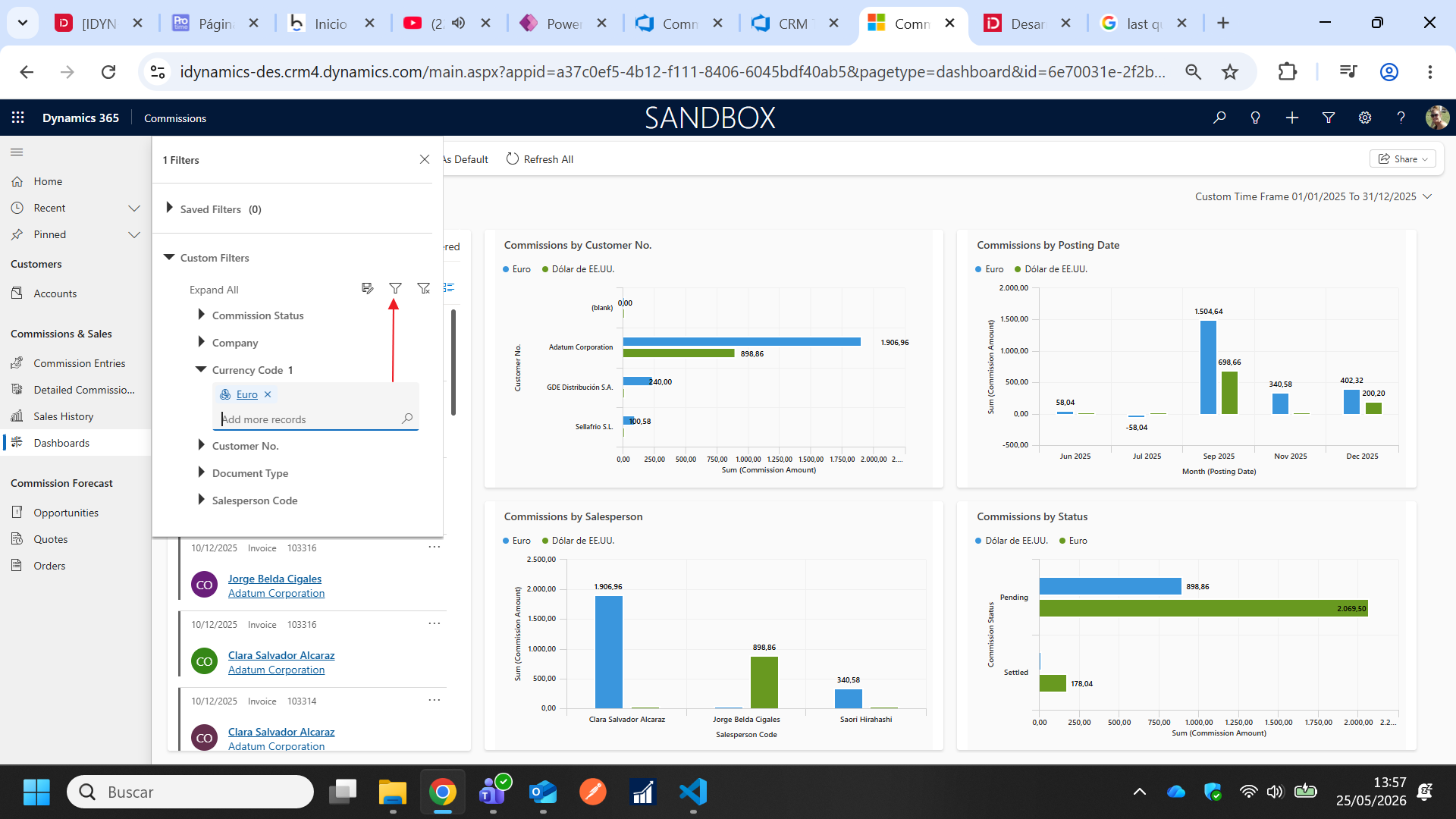
Filters are applied as in the rest of Dynamics 365 Sales dashboards, by clicking the Show global filters action and, once all selections are made, clicking the action to save them.

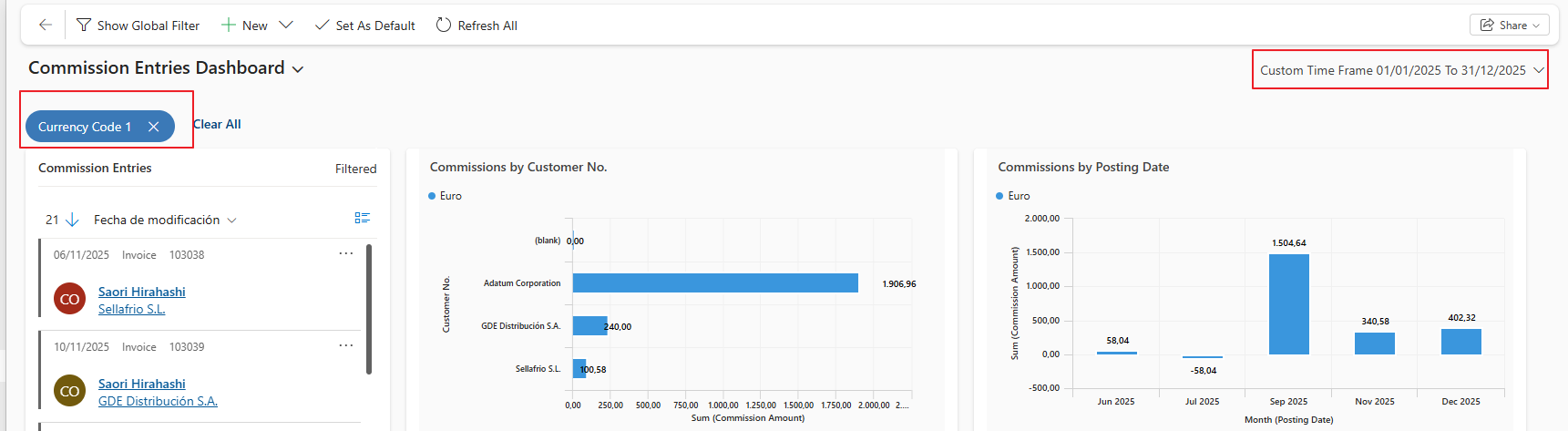
The applied filters can always be seen and can be interactively modified as many times as needed, to control the information shown in the various charts in the dashboard at all times.
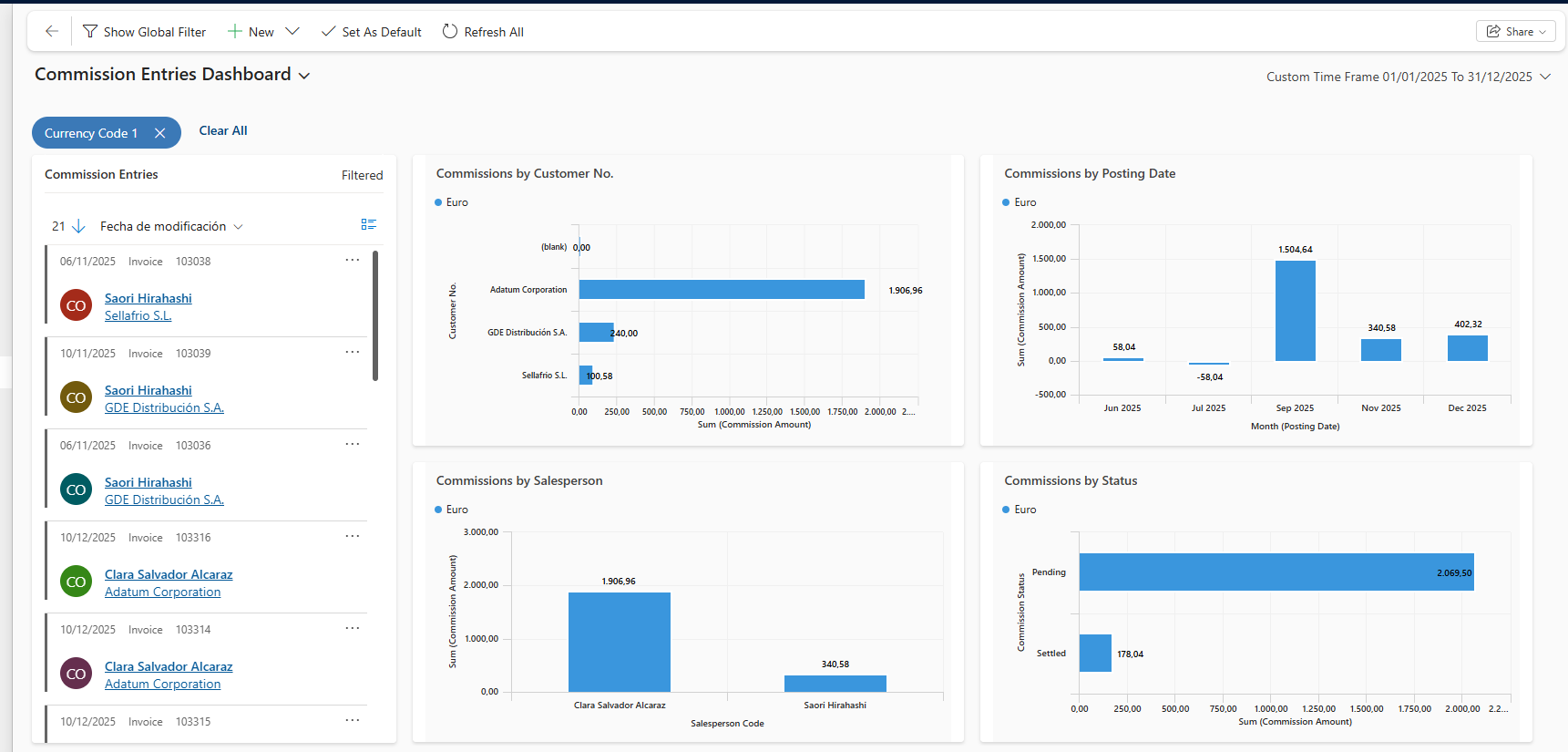
Commission dashboard
An example of the interactive commissions dashboard is shown, filtered by the Euro currency.
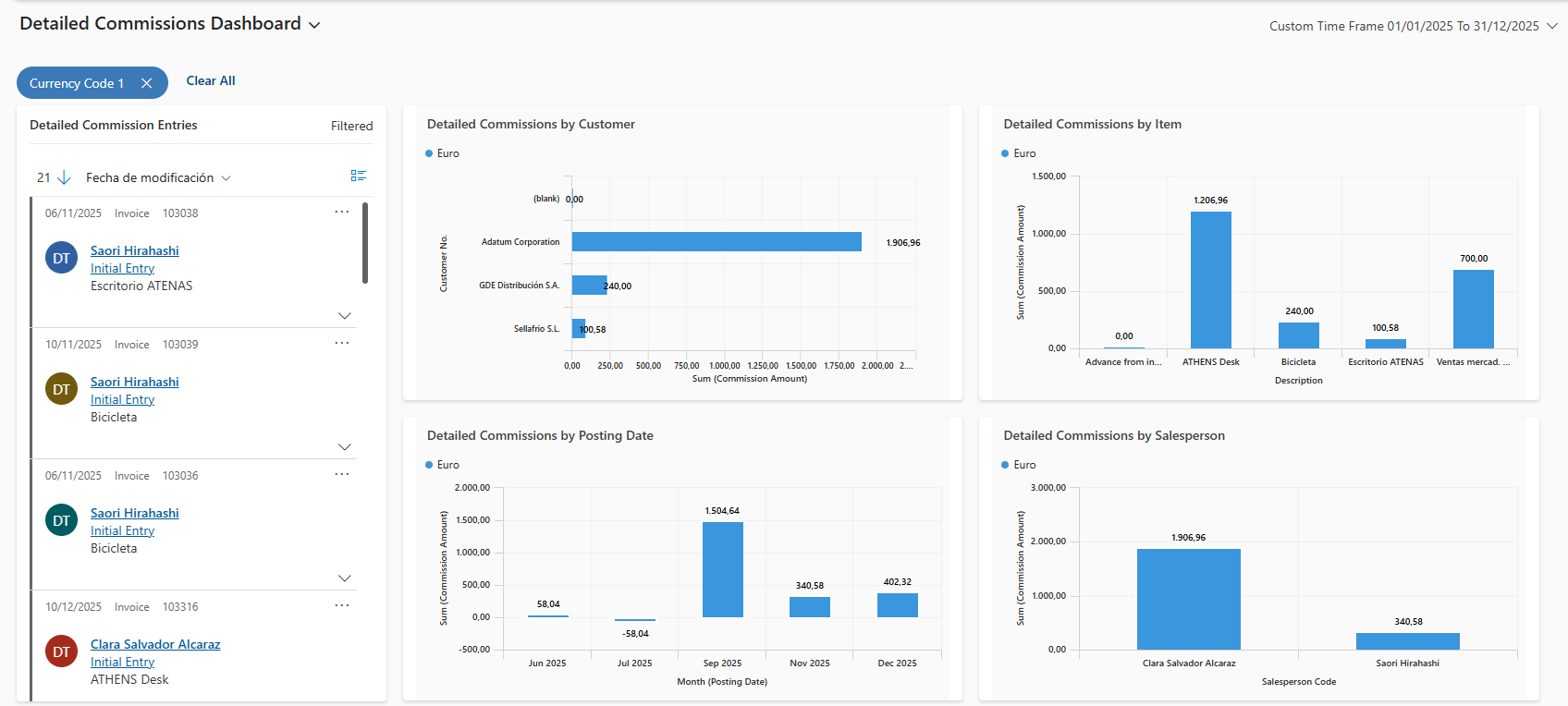
Detailed commission dashboard
An example of the interactive detailed commissions dashboard is shown, filtered by the Euro currency.
Sales dashboard
An example of the interactive sales history dashboard is shown, filtered by the Euro currency.