Register Manufacturing Output
To perform a manufacturing output, you need to press the REGISTER button:

The registration screen adapts based on:
- If the product to be manufactured has Lot/Serial tracking, those fields will be displayed.
- If the application is configured to use output pallets, the corresponding field will appear.
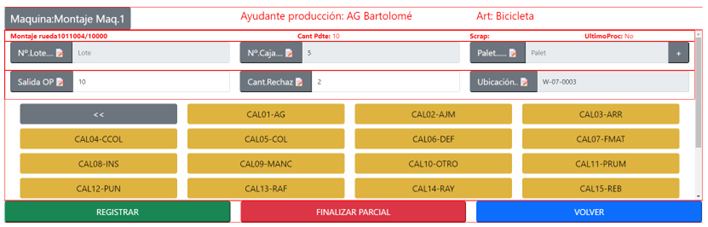
If the product to be manufactured is defined with Lot or Serial tracking, you have these options:
- The Lot/Serial number is provided in the manufacturing order.
- It's not provided, and you want it to be automatic based on the product's configuration.
- Manually enter it in the manufacturing output.
Regarding the manufacturing status, you can select:
- REGISTER AND CONTINUE: Records the manufacturing output, and the machine continues manufacturing the same without any stoppage.
- REGISTER AND STOP: After recording the manufacturing output, the production order may stop—for example, for a change to another order or a shift change break.
- REGISTER AND END PROCESS: Records the manufacturing output and completes the current manufacturing process. The order will then move to the queue of the next machine/task defined in its manufacturing route. You can start the next order in the current machine.

Fill Necessary Fields
If it's not the final process: Batch Number, Box Number, Pallet, and Location will be read-only for information purposes. They can be modified only in the final process, which generates the stock for the manufacturing output.
The manufacturing quantity, if configured, will display as a multiple. If not, it'll show zero, expecting manual entry by the operator.
Indicate “Applies-to Entry” to reverse outputs with multiple entries
In scenarios where you need to reverse a production output and there are multiple item ledger entries, Business Central requires specifying the Applies-to Entry (equivalent to Liq. por nº orden).
Shopfloor introduces an improvement that allows selecting this value before posting, just like in standard BC.
A new Options button has been added to the production output screen:
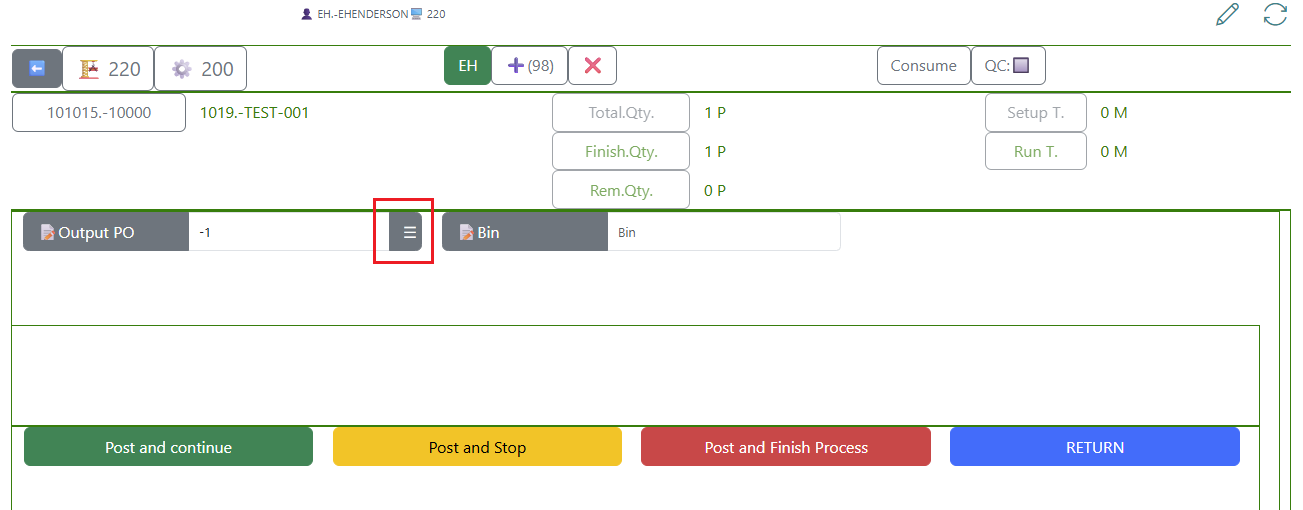
When pressed, it opens a posting options page where the entry can be typed manually or selected via AssistEdit:
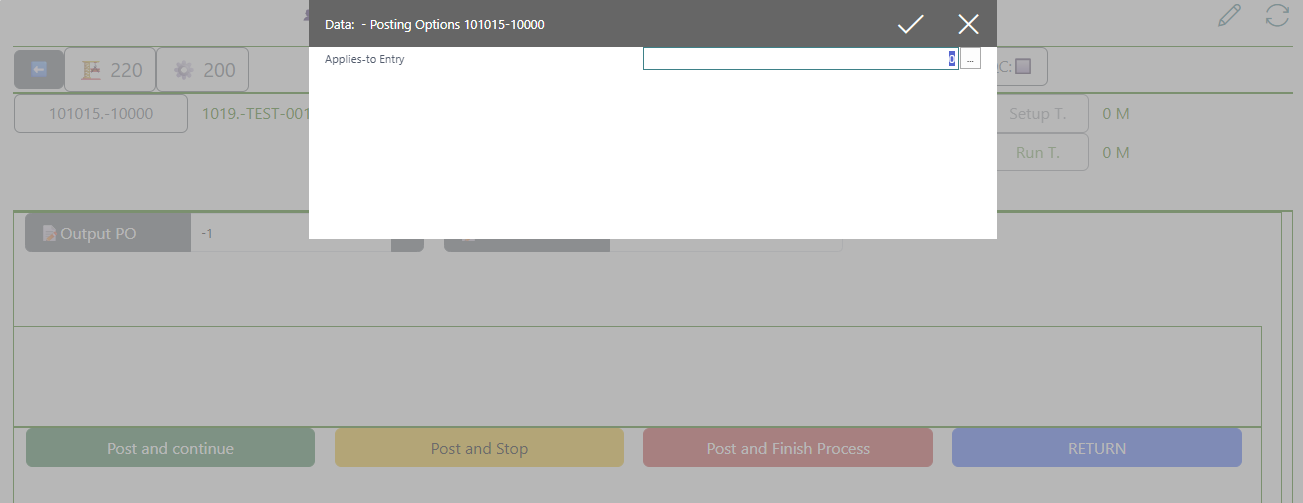
You can pick the correct entry using AssistEdit (...):

After confirming, the selected value is temporarily stored for the posting operation:

Example of Register and Stop
In this example, 2 units have been registered out of the 16 to be produced, and the production order continues to manufacture the same:
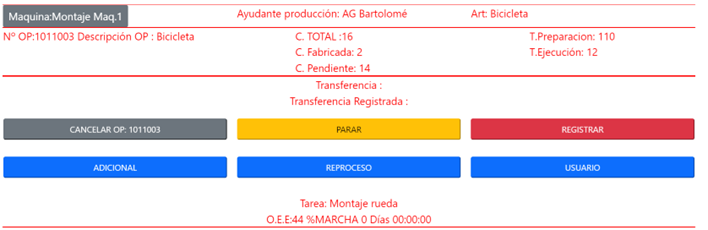
Example of Register and Continue
Upon selecting REGISTER AND STOP, it records the indicated quantity in a similar manner to the previous option. The difference is that it halts the manufacturing and keeps it pending. This production will be in the queue, similar to the others since the process can't be marked as "Finished" without producing all quantities in the order.
When it stops and if stop reasons are configured, it will prompt the operator to fill in the reason, such as at the end of a shift.
You can select this order from the pending orders list to complete it later or choose another order for this machine.
If this option was chosen in error and you don't want to continue manufacturing, the manager can complete it from the orders panel explained in this manual.
Example of Register and End Process
By selecting this button, it records the indicated quantity and concludes the manufacturing, preventing further registrations. On the machine screen, by default, it loads the next sequenced order. However, you can select any order from the list of pending orders to continue manufacturing.
Pallet
At the machine center, you can configure a serial number for generating pallets in manufacturing outputs:

To get the next pallet number in the manufacturing output screen, click on the + button:

If there's a defined report for the pallet, it will print the label for affixing it to the pallet.
Manufacturing Output Lot
If the IDPCDP Lot_No field is filled in the production order line, this information will be proposed in each manufacturing output, allowing, for example, the creation of a daily lot or optimization of changes with very large lots.
Each company can create a scheduled project queue for changing the daily lot or based on some specific rules.
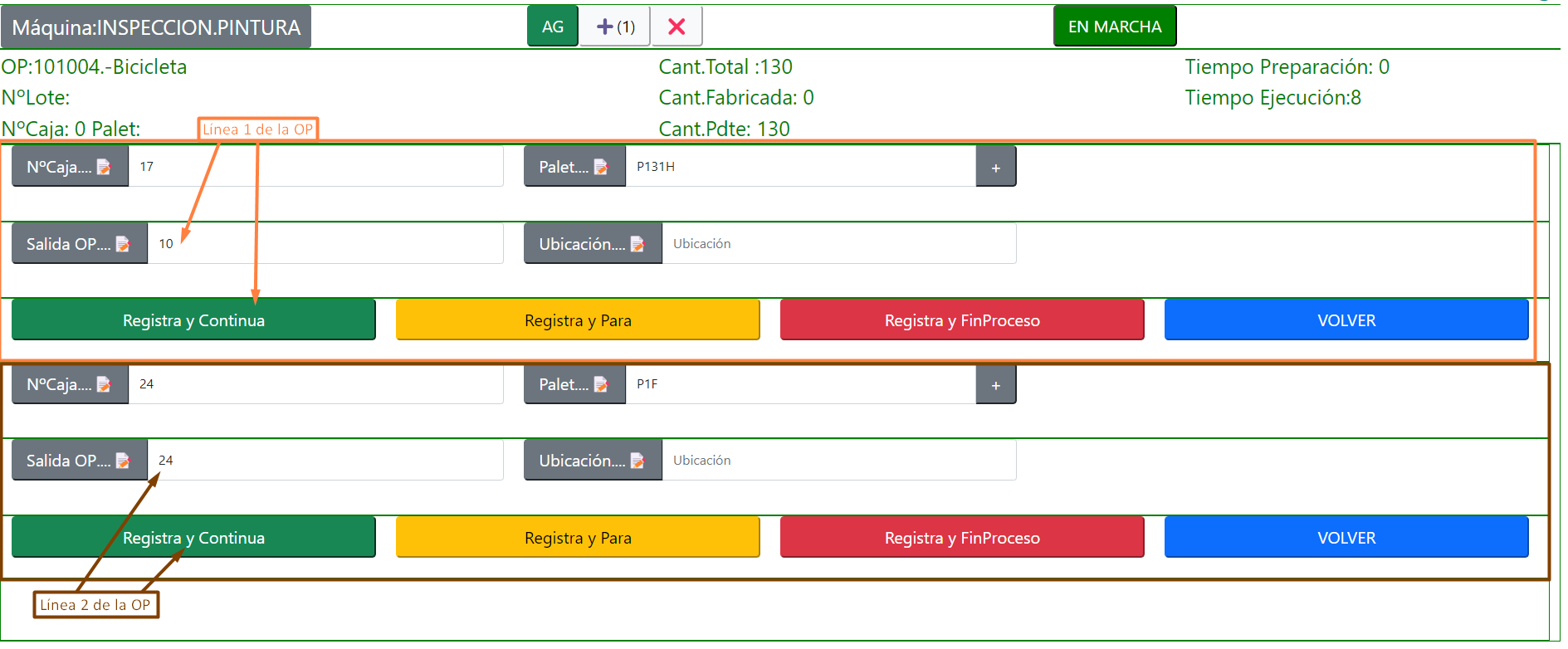
Production Orders with Families
If in Business Central, production is defined as Families, it means a common route for all lines of that production, and each line will have its specific material consumption.
The screen adapts to allow manufacturing output for the required line. The operation is similar to the normal case, with the difference that two or more manufacturing lines appear, and each line is registered independently.
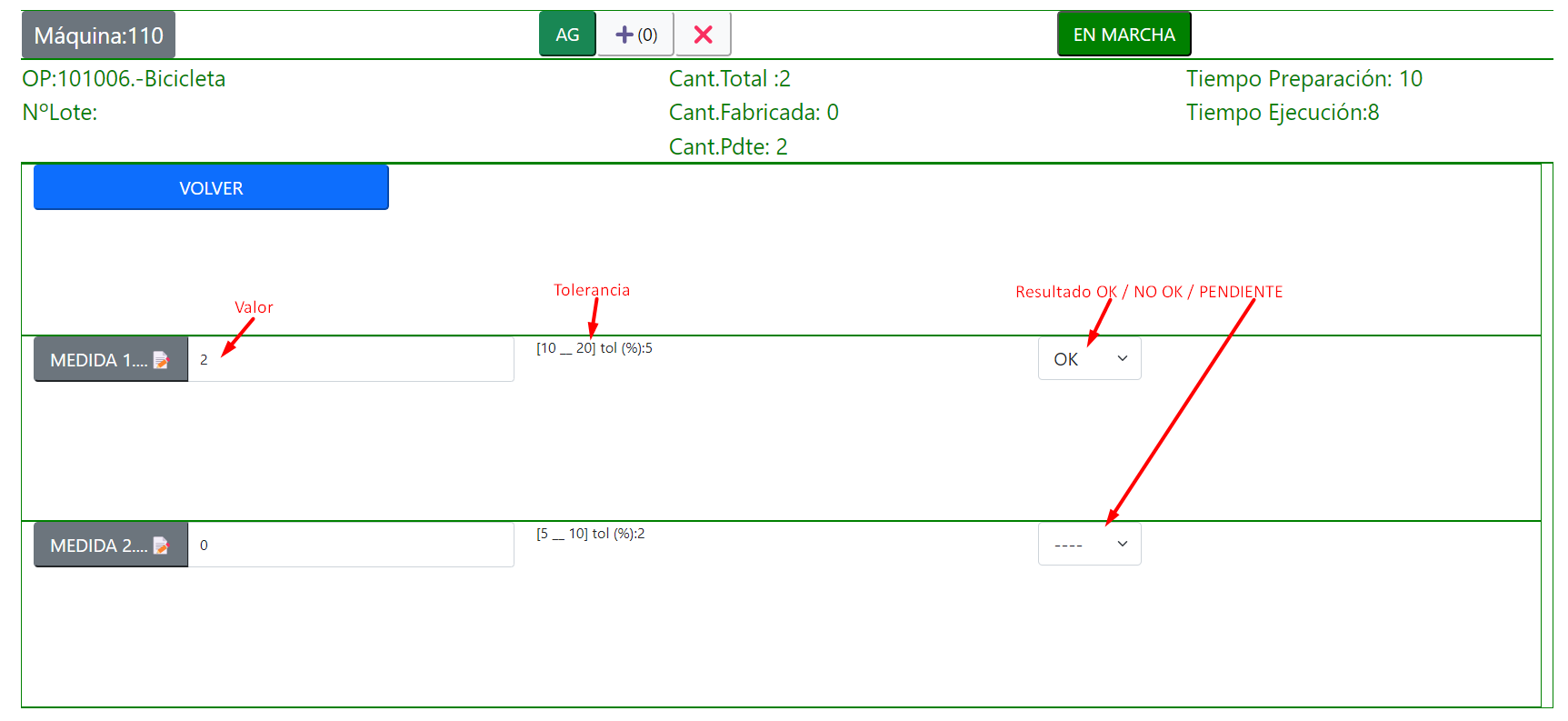
Quality Measures
If a task in the production order route has introduced quality measures, it won't allow you to finish the task until all the defined answers are completed:
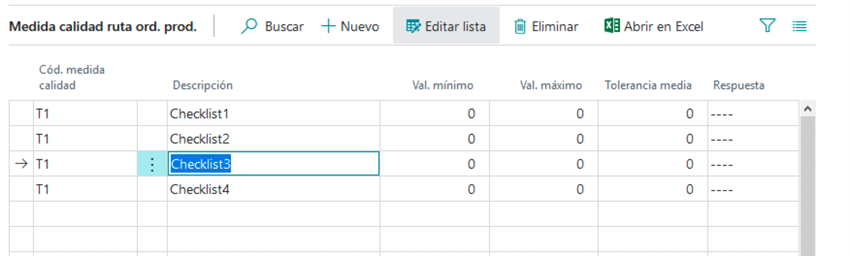
Upon registering the manufacturing on the device, a screen will appear to fill them in: