Production Orders
Description
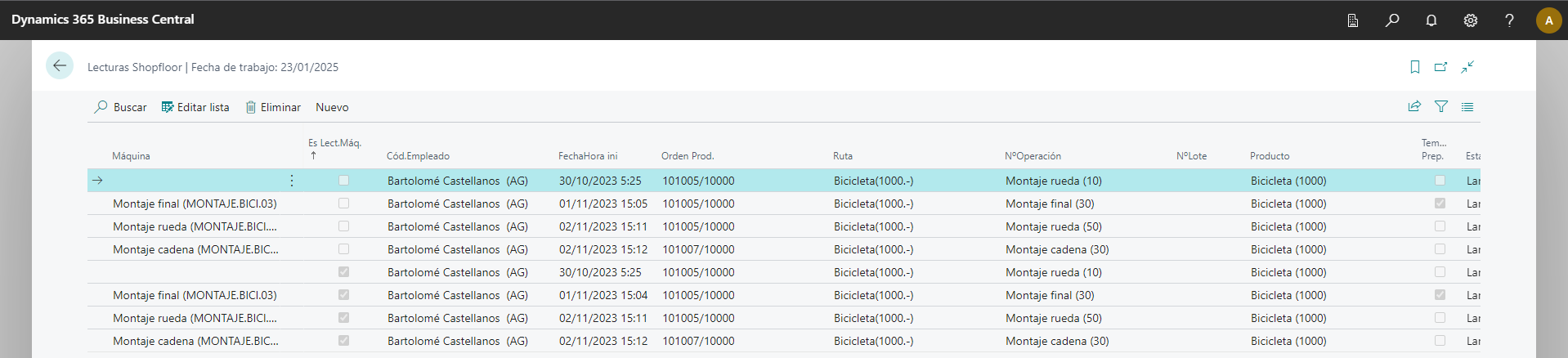
iDynamics Shopfloor provides a list that displays the state of the production floor:
The information displayed includes:
- A line for each machine that is operational, showing the ongoing production order and the operator who initiated it.
- A line for each operator working on the machine.
- Start time
- Manufacturing Lot/Series
- Product, route, etc.
Common Tasks
The primary objective of this product is to facilitate the management of everyday tasks in the production domain within the company. From any of these four activities (Simulated, Planned, Launched, or Closed), we can view the tasks that can be performed on a production:
From this screen, when filtered by a specific work center or machine, we can see the workload awaiting processing at the machine.


Manufacturing Route
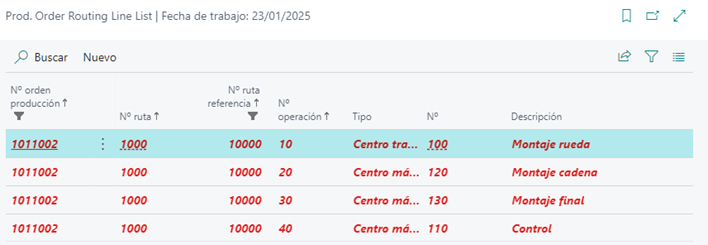
Direct access to the manufacturing route. This screen displays all the processes belonging to the production line selected.
In this screen, there are three colors: black indicates pending tasks, green represents the task currently in progress, and red indicates a completed task.
For instance, in this production order, it appears in red because it's completed:
This screen offers functionalities for common actions in manufacturing routes:
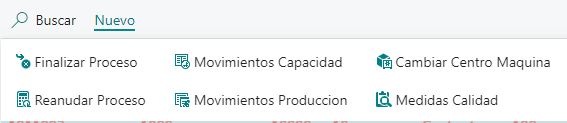
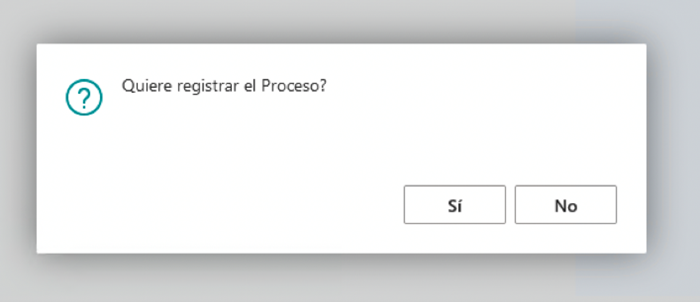
- Complete Process: When an order hasn’t been completed through the CDP or if the task won't be executed, it can be manually completed. It will prompt whether to record the capacity movement or just mark it as finished.
Resume Process: If a process has mistakenly been completed, either in the CDP or in Business Central, this option allows reactivation.
Capacity Movements: Direct access to view the capacity movements associated with that specific task.
Production Movements: Direct access to view all time-related movements made within iDynamics Shopfloor related to stops, operators, etc.
Change Machine Center: This button facilitates changing the machine center for the selected task.
Quality Measures: Direct access to the quality measures of the task, where new measures can be added, existing ones edited, or deleted.
Manufacturing Components
This opens the manufacturing components screen with the addition of three fields to improve component selection:
- Available quantity in the warehouse.
- Component quantity in the warehouse.
- Remaining available quantity in the warehouse.

Additional Order Line Options
Capacity Movements: Direct access to view the capacity movements linked to that specific production order line.
Production Movements: Direct access to view all time-related movements made within iDynamics Shopfloor regarding that production order line.
Product Movements: Direct access to view all consumption and production outputs related to that production order line.
Complete Process: It finishes the task on the current production line.
Sort Production Order List: This tool provides functionality to manage priorities in production orders at a specific work center/machine. There are certain premises to consider before starting to reorder. To enable reordering, only one center should be filtered as it won't be possible to reorder different centers. There are two fields for reordering: the first is the expiration date, and the second is the priority. If no changes are made, it will order only by expiration date as the priority will be either 0 or 99999.
Here’s an example:

Initialize Sequence: Pressing this button initializes all priorities to 99999 to start the sequencing or to restart the sequence.
Increase/Decrease Priority: These buttons allow gradual increase or decrease of priorities.
For example, we've reordered 2 lines with the Increase Priority button:

Maximize Priority: If you want an order with no priority to become the most urgent, you can instantly elevate it to the top.
Remove Priority: Conversely, if you want to remove all the priority from an order without doing it one by one, you can remove all at once.
Bulk Delete: In case several orders have been mistakenly created or are no longer necessary, this button allows batch deletion after confirming.
Change Multiple Production Order States: This button facilitates changing the states of multiple production orders, enabling a smooth transition from one state to another.
Change Route: This button allows changing the route for multiple production orders to adapt to different situations. Normally, changing the route is a slow process as it requires modifying the product route and updating the order. This button streamlines the process.
Change Bill of Materials: This button enables changing the bill of materials for multiple production orders, allowing adjustments for specific needs. Changing the bill of materials is usually time-consuming, but this button automates the process.
Change Component Warehouse: This button is for altering the component's consumption warehouse for all the selected production orders.
Change Initial Date: This button changes the initial date of the selected production orders. The standard date calculation method will recalculate the end date.
Show Document: Direct access to the production order page.
Create Orders: Opens a list-type screen to create multiple orders at once, prompting for status, product, and expiration date.
Consume: Goes through all the components of the production order and tries to register the expected quantities for the production order if there is sufficient stock.
Change Quantity: Allows changing the quantity of the currently selected production order without entering the order details.
Stock by Storage Units: Provides a clear view of stock by warehouses if storage units are used:
